작업 환경
- VMware
- OS : Ubuntu 24.04(LTS)
- CPU : 4vCPU
- Memory : 8GB
- Zabbix : ubuntu-7.0-latest
- Database: Postgres 14
- 사용 계정 : zabbix: uid=1001(zabbix) gid=1001(zabbix) groups=1001(zabbix),4(adm),27(sudo)
- 서버 IP: 192.168.111.80
Docker 설치 및 테스트
Docker의 설치는 공식 홈페이지의 가이드를 따라 진행했습니다
더욱 자세한 내용을 알고 싶으시면 아래 링크 참고해주세요
https://docs.docker.com/engine/install/ubuntu/
Ubuntu
Jumpstart your client-side server applications with Docker Engine on Ubuntu. This guide details prerequisites and multiple methods to install Docker Engine on Ubuntu.
docs.docker.com
1. 설치 전 충돌 가능성이 있는 패키지를 제거
$ for pkg in docker.io docker-doc docker-compose docker-compose-v2 podman-docker containerd runc; do sudo apt-get remove $pkg; done
2. 레포지토리 등록
# Add Docker's official GPG key:
$ sudo apt-get update
$ sudo apt-get install ca-certificates curl
$ sudo install -m 0755 -d /etc/apt/keyrings
$ sudo curl -fsSL https://download.docker.com/linux/ubuntu/gpg -o /etc/apt/keyrings/docker.asc
$ sudo chmod a+r /etc/apt/keyrings/docker.asc
# Add the repository to Apt sources:
$ echo \ "deb [arch=$(dpkg --print-architecture) signed-by=/etc/apt/keyrings/docker.asc] https://download.docker.com/linux/ubuntu \
$(. /etc/os-release && echo "$VERSION_CODENAME") stable" | \
sudo tee /etc/apt/sources.list.d/docker.list > /dev/null sudo apt-get update
3. 패키지 설치
$ sudo apt-get install docker-ce docker-ce-cli containerd.io docker-buildx-plugin docker-compose-plugin
4. Docker Test
zabbix@zabbix-docker:~$ sudo docker run hello-world
Unable to find image 'hello-world:latest' locally
latest: Pulling from library/hello-world
c1ec31eb5944: Pull complete
Digest: sha256:553c995e16e3178003c1227821318999dad22dac3dbb877aac3c28182255c736
Status: Downloaded newer image for hello-world:latest
Hello from Docker!
This message shows that your installation appears to be working correctly.
To generate this message, Docker took the following steps:
1. The Docker client contacted the Docker daemon.
2. The Docker daemon pulled the "hello-world" image from the Docker Hub. (amd64)
3. The Docker daemon created a new container from that image which runs the executable that produces the output you are currently reading.
4. The Docker daemon streamed that output to the Docker client, which sent it to your terminal.
To try something more ambitious, you can run an Ubuntu container with:
$ docker run -it ubuntu bash
Share images, automate workflows, and more with a free Docker ID:
https://hub.docker.com/
For more examples and ideas, visit:
https://docs.docker.com/get-started/
5. Docker Process 확인
zabbix@zabbix-docker:~$ sudo docker images
REPOSITORY TAG IMAGE ID CREATED SIZE
hello-world latest d2c94e258dcb 19 months ago 13.3kB
Docker Compose 설치 및 테스트
1. docker-compose 패키지 설치
$ sudo apt install docker-compose
2. compose 파일 만들기
!! compose 파일은 반드시 작업 디렉토리에서 만들어야 합니다
!! compose 파일은 이름을 반드시 맞춰 주어야 합니다.
- compose.yaml(권장) **
- compose.yml
- docker-compose.yaml
- docker-compose.yml
!! compose 파일에서 하위 항목의 구분은 공백 2칸씩 늘려가기 때문에 반드시 지켜야 한다.
!! compose 파일에서 ${변수명} 형식은 .env파일에 작성해주어야 사용 가능하다.
services:
  postgres-server:
    container_name: postgres-server
    image: postgres:14.0-alpine
    restart: always
    environment:
      POSTGRES_USER: ${POSTGRES_USER}
      POSTGRES_PASSWORD: ${POSTGRES_PASSWORD}
      POSTGRES_DB: ${POSTGRES_DB}
      PG_DATA: /var/lib/postgresql/data/pgdata
    volumes:
      - postgres-data:/var/lib/postgresql/data
      - ./public/postgres/postgresql.conf:/var/lib/postgresql/data/postgresql.conf
    networks:
      zabbix-network:
        ipv4_address: 172.26.0.10

  zabbix-server:
    container_name: zabbix-server
    image: zabbix/zabbix-server-pgsql:ubuntu-7.0-latest
    restart: always
    mem_limit: 12g
    ports:
      - '10051:10051'
    environment:
      POSTGRES_USER: ${POSTGRES_USER}
      POSTGRES_PASSWORD: ${POSTGRES_PASSWORD}
      POSTGRES_DB: ${POSTGRES_DB}
      ZBX_HISTORYSTORAGETYPES: log,text
      ZBX_DEBUGLEVEL: 1
      ZBX_HOUSEKEEPINGFREQUENCY: 1
      ZBX_MAXHOUSEKEEPERDELETE: 5000
    depends_on:
      - postgres-server
    volumes:
      - ./public/server/zabbix_server.conf:/etc/zabbix/zabbix_server.conf:ro
      - zabbix-data:/var/lib/zabbix
    networks:
      zabbix-network:
        ipv4_address: 172.26.0.20

  zabbix-frontend:
    container_name: zabbix-frontend
    image: zabbix/zabbix-web-nginx-pgsql:ubuntu-7.0-latest
    restart: always
    ports:
      - '80:8080'
    environment:
      POSTGRES_USER: ${POSTGRES_USER}
      POSTGRES_PASSWORD: ${POSTGRES_PASSWORD}
      POSTGRES_DB: ${POSTGRES_DB}
      ZBX_SERVER_HOST: zabbix-server
      ZBX_POSTMAXSIZE: 64M
      PHP_TZ: ${TZ}
      ZBX_MAXEXECUTIONTIME: 500
      TZ: "Asia/Seoul"
    depends_on:
      - postgres-server
      - zabbix-server
    volumes:
      - zabbix-frontend-data:/usr/share/zabbix
      # 리포트 연동으로 필요 시 주석 해제
      # - ./public/frontend/zabbix-pdf-report:/usr/share/zabbix/zabbix-pdf-report
    networks:
      zabbix-network:
        ipv4_address: 172.26.0.30

  zabbix-agent:
    container_name: zabbix-agent
    image: zabbix/zabbix-agent:latest
    ports:
      - '10050:10050'
    privileged: true
    restart: unless-stopped
    environment:
      ZBX_SERVER_HOST: 172.26.0.20
      ZBX_HOSTNAME: Zabbix server
    volumes:
      # Syslog 연동으로 필요 시 주석 해제
      # - ./public/agent/syslog.log:/etc/zabbix/logs/syslog.log
    networks:
      zabbix-network:
        ipv4_address: 172.26.0.40

networks:
  zabbix-network:
    ipam:
      driver: default
      config:
        - subnet: 172.26.0.0/16

volumes:
  postgres-data:
  zabbix-data:
  zabbix-frontend-data:
3. .env 파일 만들기
POSTGRES_USER=zabbix
POSTGRES_PASSWORD=Input your password
POSTGRES_DB=zabbix
TZ=Asia/Seoul
4. 의존 파일 및 디렉토리 생성하기
$ mkdir -p ~/public/server
$ mkdir -p ~/public/frontend
$ mkdir -p ~/public/postgress
$ mkdir -p ~/public/agent
!! 아래 config 파일 내용은 각 서버 환경에 맞게 수정이 필요합니다.
### postgres-server ### <- wal size 관리를 위한 config 파일 수정
$ vi ~/public/postgres/postgresql.conf

listen_addresses = '*'
max_wal_size = 4GB
min_wal_size = 80MB
log_timezone = 'KST'
datestyle = 'iso, mdy'
timezone = 'KST'
default_text_search_config = 'pg_catalog.english'

### zabbix-server ### <- 메모리 관리를 위한 config 파일 수정
$ vi ~/public/server/zabbix_server.conf
LogType=console
DebugLevel=1
SocketDir=/tmp/
DBHost=postgres-server
DBName=zabbix
DBSchema=public
DBUser=zabbix
DBPassword=<Input your password>
DBPort=5432
HistoryStorageTypes=log,text
HousekeepingFrequency=1
MaxHousekeeperDelete=5000
CacheSize=4096M
HistoryCacheSize=1024M
HistoryIndexCacheSize=1024M
TrendCacheSize=256M
TrendFunctionCacheSize=256M
ValueCacheSize=1024M

AlertScriptsPath=/usr/lib/zabbix/alertscripts
ExternalScripts=/usr/lib/zabbix/externalscripts
FpingLocation=/usr/bin/fping
SSHKeyLocation=/var/lib/zabbix/ssh_keys
User=zabbix

SSLCertLocation=/var/lib/zabbix/ssl/certs/
SSLKeyLocation=/var/lib/zabbix/ssl/keys/
SSLCALocation=/var/lib/zabbix/ssl/ssl_ca/
LoadModulePath=/var/lib/zabbix/modules/

### zabbix-frontend ### <- Zabbix PDF Reporting 사용 시 관련 파일
### zabbix-agent ### <- Syslog 연동
5. docker compose 구동
$ sudo docker-compose up -d
6. 컨테이너 확인
$ sudo docker ps -a
Zabbix 기본 설정
1. http://192.168.111.80 접속 후 로그인(기본 계정 Admin/zabbix)
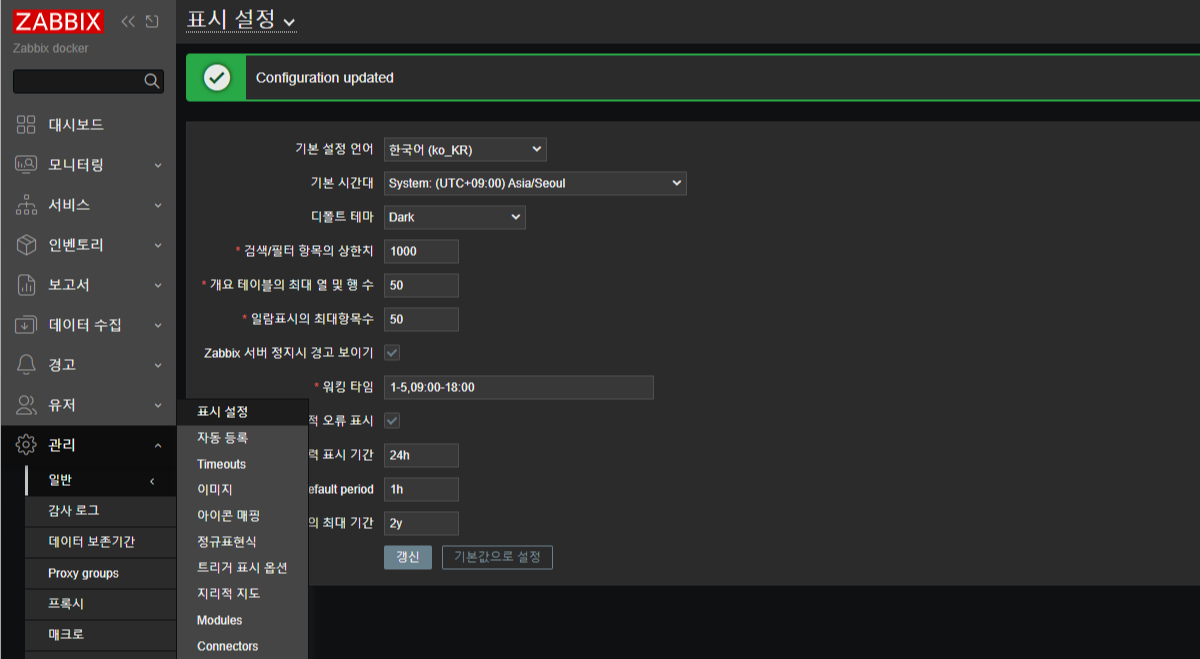
2. 왼쪽 메뉴 중 Adminitration - General - GUI에서 Default language를 English (en_US)에서 Korean (ko_KR)로 변경
3. 왼쪽 메뉴 중 데이터 수집 - 호스트에서 Zabbix server 항목의 interfaces > 에이전트의 IP 주소를 172.26.0.40으로 수정

마무리
이로써 모니터링 툴 Zabbix 설치가 완료되었습니다.
'Zabbix' 카테고리의 다른 글
| [Zabbix] Docker-Compose로 Active Proxy 연동 하기 (3) | 2024.12.17 |
|---|