RabbitMQ란?

RabbitMQ는 AMQP(Advanced Message Queuing Protocol)를 구현한 오픈소스 메시지 브로커입니다.
Producer(생산자)가 보낸 메시지를 Queue에 저장한 뒤, Consumer(소비자)에게 전달해주는 비동기 메시징 시스템입니다.


AMQP와 함께 MQTT, STORMQ 등 여러 플러그인을 제공하여 다양한 프로토콜과의 결합도 가능하기 때문에 많이 사용합니다.

마이크로서비스, 이벤트 기반 시스템, 비동기 처리 등에서 널리 사용됩니다.


RabbitMQ 실습 환경 구성

실습에 사용되는 서버는 다음과 같습니다:

역할IP 주소OS 버전
🐇 RabbitMQ Broker 192.168.254.140 Ubuntu 24.04
📤 Publisher (Producer) 192.168.254.144 Ubuntu 22.04
📥 Subscriber (Consumer) 192.168.254.145 Ubuntu 22.04

RabbitMQ는 192.168.254.140 서버에 설치되어 있으며, 각 클라이언트는 네트워크를 통해 메시지를 송수신합니다.


RabbitMQ 설치 및 기본 설정

RabbitMQ를 설치합니다.

sudo apt install rabbitmq-server


설치가 완료되면 서비스가 정상적으로 실행중인지 확인합니다.

lejus@rbmq-1:~$ sudo service rabbitmq-server status
● rabbitmq-server.service - RabbitMQ Messaging Server
     Loaded: loaded (/lib/systemd/system/rabbitmq-server.service; enabled; vendor preset: enabled)
     Active: active (running) since Wed 2025-04-23 17:27:13 KST; 16h ago
   Main PID: 93430 (beam.smp)
      Tasks: 276 (limit: 4519)
     Memory: 177.5M
        CPU: 9min 21.254s
     CGroup: /system.slice/rabbitmq-server.service
             ├─93430 /usr/lib/erlang/erts-12.2.1/bin/beam.smp -W w -MBas ageffcbf -MHas ageffcbf -MBlmbcs 512 -MHlmbcs 512 -MMmcs 30 -P 1048576 -t 5000000 ->
             ├─93442 erl_child_setup 65536
             ├─93996 inet_gethost 4
             ├─93997 inet_gethost 4
             └─94010 /bin/sh -s rabbit_disk_monitor

Apr 23 17:27:08 rbmq-1 systemd[1]: Starting RabbitMQ Messaging Server...
Apr 23 17:27:13 rbmq-1 systemd[1]: Started RabbitMQ Messaging Server.
lejus@rbmq-1:~$ ss -anltp
State         Recv-Q        Send-Q               Local Address:Port                  Peer Address:Port        Process
LISTEN        0             128                        0.0.0.0:25672                      0.0.0.0:*
LISTEN        0             1024                       0.0.0.0:15672                      0.0.0.0:*
LISTEN        0             128                        0.0.0.0:22                         0.0.0.0:*
LISTEN        0             4096                     127.0.0.1:40379                      0.0.0.0:*
LISTEN        0             4096                       0.0.0.0:31311                      0.0.0.0:*
LISTEN        0             4096                 127.0.0.53%lo:53                         0.0.0.0:*
LISTEN        0             128                              *:5672                             *:*
LISTEN        0             128                              *:1883                             *:*
LISTEN        0             4096                             *:4222                             *:*            users:(("nats-server",pid=69840,fd=3))
LISTEN        0             128                           [::]:22                            [::]:*
LISTEN        0             4096                             *:4369                             *:*
LISTEN        0             4096                          [::]:31311                         [::]:*


서비스 Active가 active (running) 이고, TCP 포트 5672가 LISTEN 상태면 됩니다.


다음으로 계정을 생성합니다.

기본적으로 guest/guest 계정이 있지만 localhost 에서만 로그인되므로 신규 계정을 생성합니다.

sudo rabbitmqctl add_user <계정명> <비밀번호>

lejus@rbmq-1:~$ sudo rabbitmqctl add_user myuser password
Adding user "myuser" ...
Done. Don't forget to grant the user permissions to some virtual hosts! See 'rabbitmqctl help set_permissions' to learn more.
lejus@rbmq-1:~$


다음으로 권한을 부여합니다.

lejus@rbmq-1:~$ sudo rabbitmqctl set_permissions myuser ".*" ".*" ".*"
Setting permissions for user "myuser" in vhost "/" ...


myuser 계정으로 모든 권한을 허용 한다는 의미입니다.


다음으로 tag 설정을 해줍니다.


GUI와 같은 관리를 위해서는 관리자로 지정해주어야 합니다.

lejus@rbmq-1:~$ sudo rabbitmqctl set_user_tags myuser administrator
Setting tags for user "myuser" to [administrator] ...
lejus@rbmq-1:~$ sudo rabbitmqctl list_users
Listing users ...
user    tags
guest   [administrator]
myuser  [administrator]


다음으로 GUI Plugin을 활성화 합니다.


기본적으로 GUI 환경을 제공합니다.

lejus@rbmq-1:~$ sudo rabbitmq-plugins enable rabbitmq_management
Enabling plugins on node rabbit@rbmq-1:
rabbitmq_management
The following plugins have been configured:
  rabbitmq_management
  rabbitmq_management_agent
  rabbitmq_mqtt
  rabbitmq_web_dispatch
Applying plugin configuration to rabbit@rbmq-1...
The following plugins have been enabled:
  rabbitmq_management
  rabbitmq_management_agent
  rabbitmq_web_dispatch

started 3 plugins.

lejus@rbmq-1:~$ ss -anltp
State                             Recv-Q                            Send-Q                                                       Local Address:Port                                                          Peer Address:Port                            Process
LISTEN                            0                                 128                                                                0.0.0.0:25672                                                              0.0.0.0:*
LISTEN                            0                                 1024                                                               0.0.0.0:15672                                                              0.0.0.0:*
LISTEN                            0                                 128                                                                0.0.0.0:22                                                                 0.0.0.0:*
LISTEN                            0                                 4096                                                             127.0.0.1:40379                                                              0.0.0.0:*
LISTEN                            0                                 4096                                                               0.0.0.0:31311                                                              0.0.0.0:*
LISTEN                            0                                 4096                                                         127.0.0.53%lo:53                                                                 0.0.0.0:*
LISTEN                            0                                 128                                                                      *:5672                                                                     *:*
LISTEN                            0                                 128                                                                      *:1883                                                                     *:*
LISTEN                            0                                 4096                                                                     *:4222                                                                     *:*                                users:(("nats-server",pid=69840,fd=3))
LISTEN                            0                                 128                                                                   [::]:22                                                                    [::]:*
LISTEN                            0                                 4096                                                                     *:4369                                                                     *:*
LISTEN                            0                                 4096                                                                  [::]:31311                                                                 [::]:*


TCP 15672 포트가 GUI 포트입니다. LISTEN 상태로 되어있는지 확인합니다.


여기까지 설정이 완료되면 GUI 접속을 시도합니다.

http://192.168.254.140:15672로 접속하면 아래와 같은 화면이 출력됩니다.
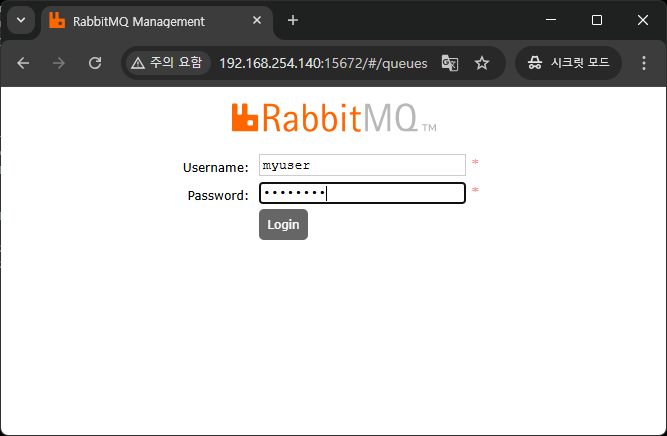
 

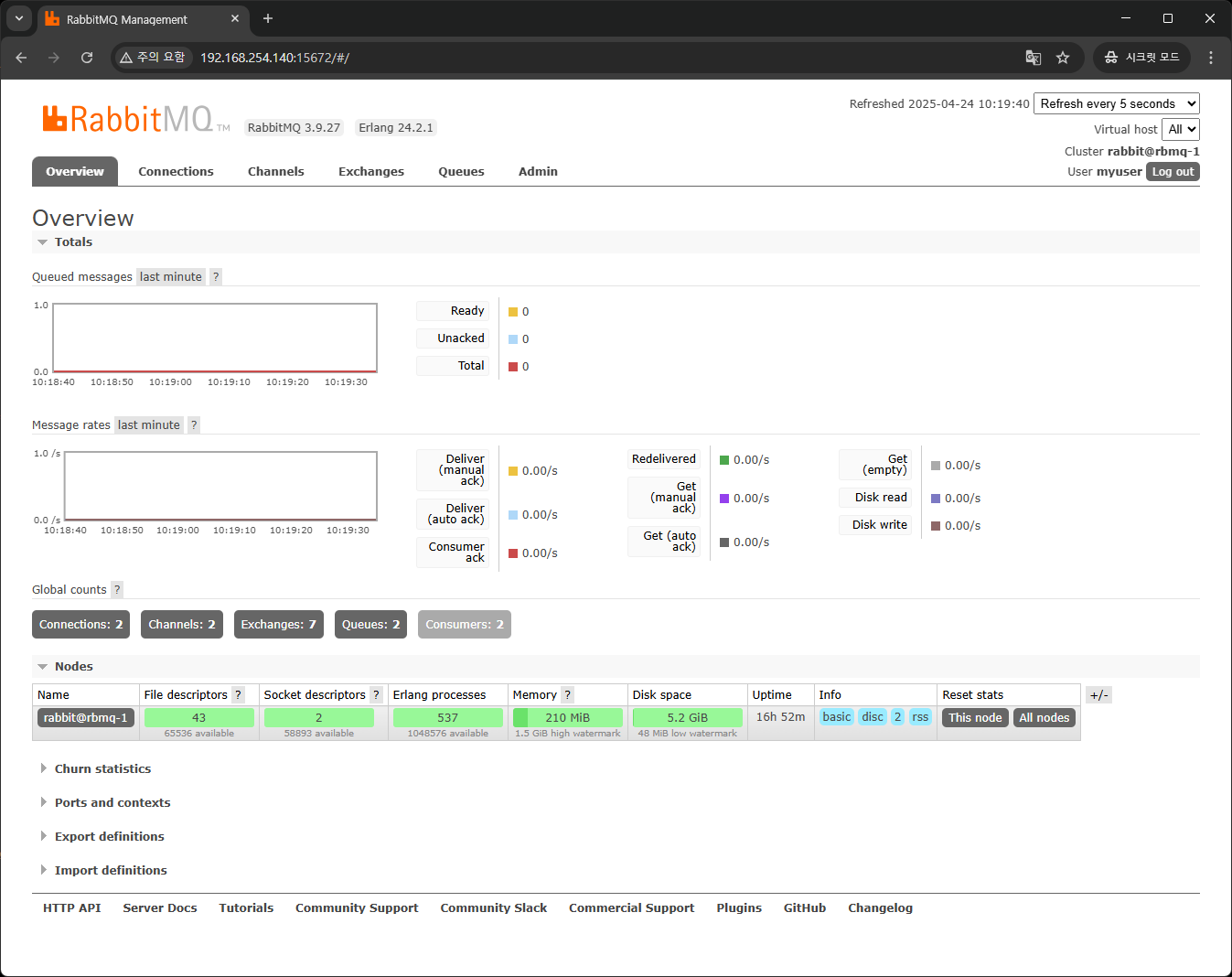
위에서 생성한 계정으로 로그인이 되는지 확인합니다.

AMQP를 활용한 통신 예제

간단하게 파이썬을 활용해서 두 클라이언트(Publisher, Subscriber)간의 메시지 전송 예제를 확인합니다.


Python으로 AMQP 통신을 진행하려면 pika 모듈을 설치해야 합니다.

python -m pip install pika


Publisher 코드

import pika

credentials = pika.PlainCredentials('myuser', 'password')
parameters = pika.ConnectionParameters('192.168.254.140', 5672, '/', credentials)
connection = pika.BlockingConnection(parameters)
channel = connection.channel()

channel.basic_publish(exchange='',
                      routing_key='hello',
                      body='Hello RabbitMQ with login!')
print(" [x] Sent message with login")
connection.close()


RabbitMQ 서버에서 생성한 계정과 서버 접속 정보를 가지고 연결을 시도하며, hello라는 Queue에 메시지를 전송합니다.


기본적으로 exchange는 Direct로 되어있으며 body 부분에 전달할 정보를 입력합니다.


routing_key는 Direct Exhange 안의 Queue가 Binding될 때 사용한 Key값을 의미합니다.


지금 예제에서는 hello가 됩니다.


Subscriber 코드

import pika

credentials = pika.PlainCredentials('myuser', 'password')
parameters = pika.ConnectionParameters('192.168.254.140', 5672, '/', credentials)
connection = pika.BlockingConnection(parameters)
channel = connection.channel()

channel.queue_declare(queue='hello')

def callback(ch, method, properties, body):
    print(f" [x] Received: {body.decode()}")

channel.basic_consume(queue='hello',
                      on_message_callback=callback,
                      auto_ack=True)

print(' [*] Waiting for messages...')
channel.start_consuming()


Publisher와 마찬가지로 접속을 진행하며 hello라는 Queue를 구독(수신 대기) 합니다.


이후 Queue에 메시지가 등록되면 Subscriber는 해당 메시지를 수신하여 on_message_callback에 의해 처리하도록 합니다.


Callback Method 형식은 다음과 같습니다.

def on_message_callback(ch, method, properties, body):
ch 메시지를 소비하는 채널 객체입니다. 여기서 ack, nack, reject 등을 호출할 수 있습니다.
method 메시지의 전달 정보 (delivery tag, exchange, routing key 등)를 담고 있는 객체입니다.
properties 메시지 속성 (headers, content_type 등) 정보를 담은 객체입니다.
body 큐에서 받은 메시지 본문 (payload) 입니다. 일반적으로 bytes 타입입니다.


Subscriber를 실행한 후

(venv) lejus@subscriber:~$ vi consumer.py
(venv) lejus@subscriber:~$ python consumer.py
 [*] Waiting for messages...


GUI에서 Queues 탭을 확인하면


hello라는 Queue가 생성된 것을 확인할 수 있습니다.


그리고 Connections 탭에 이동하면
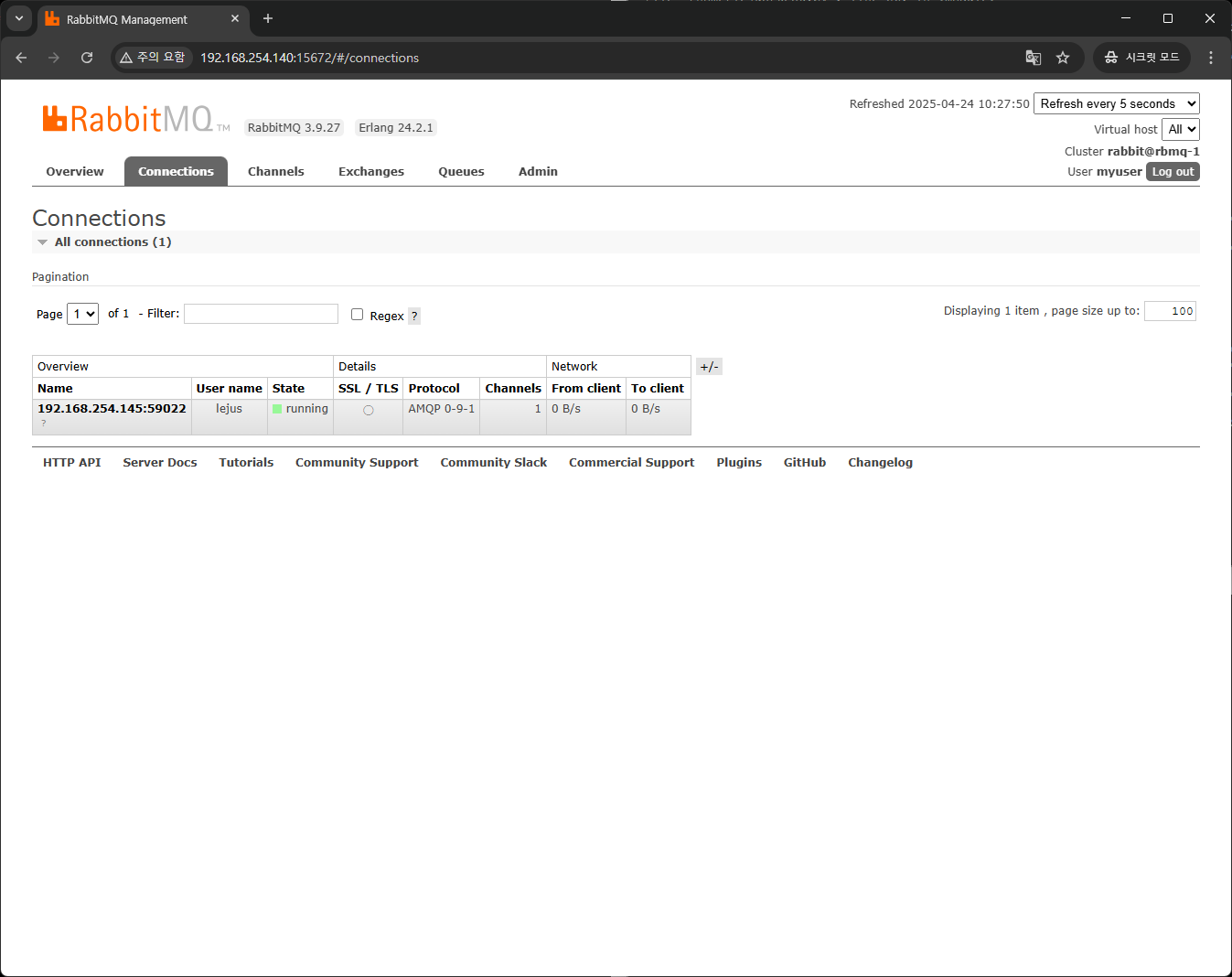
 

현재 연결 중인 호스트에 대한 정보를 확인할 수 있습니다.


그리고 Exchanges 탭으로 이동하면
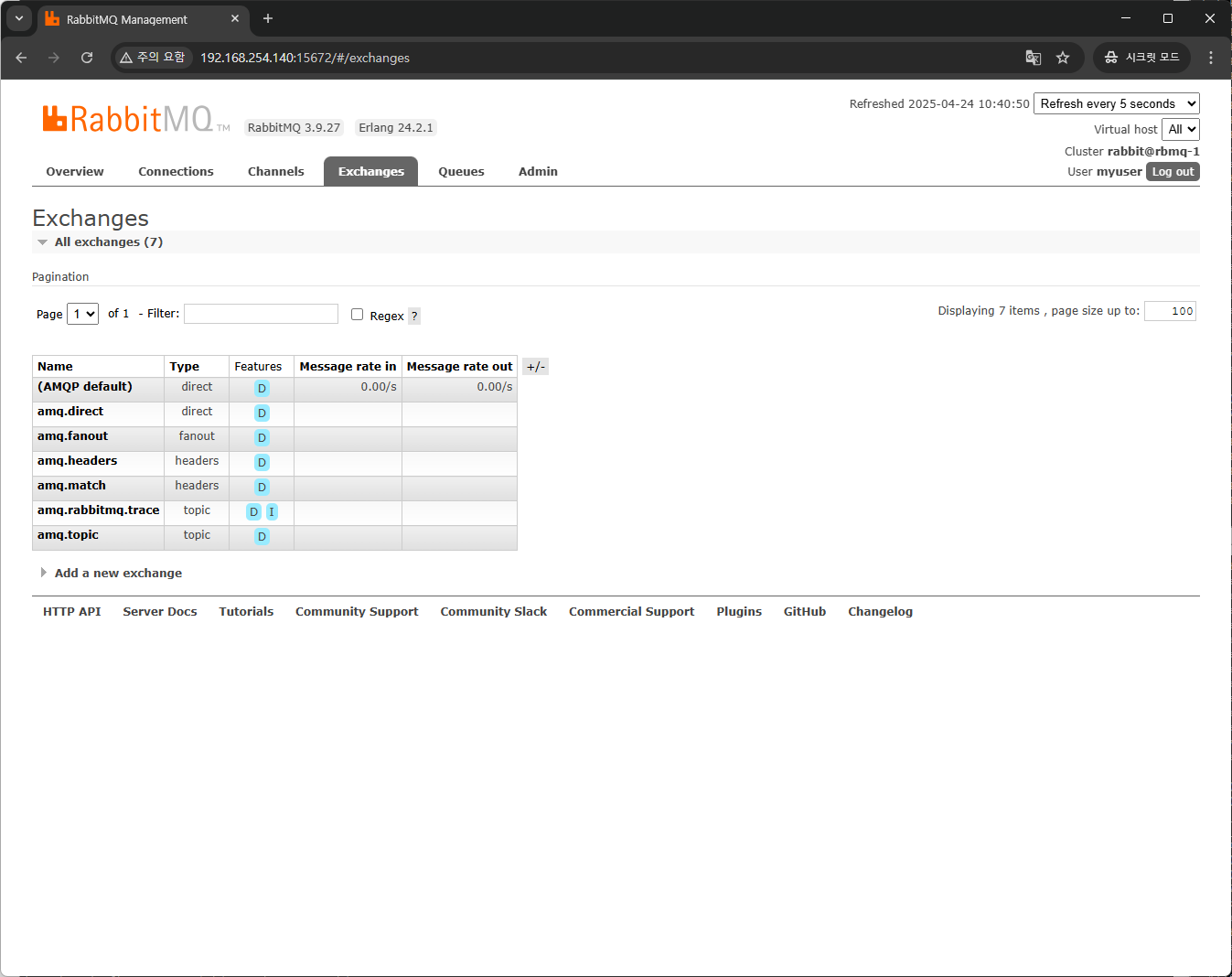
 

(AMQP default) Name 옆에 Message rate in과 Message rate out에 값이 0.00/s 라는 값으로 확인되는데 아까 Python 코드에서 exchange가 빈 값이면 기본적으로 direct exchange를 사용한다고 했기 때문에 Type이 direct 기본 값이 선택됩니다.


그리고 Publisher 코드를 실행하면

(venv) lejus@publisher:~$ python publisher.py
 [x] Sent message with login


RabbitMQ 서버의 로그 파일에 다음과 같은 로그가 확인 됩니다.

lejus@rbmq-1:~$ sudo tail /var/log/rabbitmq/rabbit@rbmq-1.log
2025-04-24 10:28:28.908034+09:00 [info] <0.28624.0> accepting AMQP connection <0.28624.0> (192.168.254.144:60346 -> 192.168.254.140:5672)
2025-04-24 10:28:28.911648+09:00 [info] <0.28624.0> connection <0.28624.0> (192.168.254.144:60346 -> 192.168.254.140:5672): user 'myuser' authenticated and granted access to vhost '/'
2025-04-24 10:28:28.917865+09:00 [info] <0.28624.0> closing AMQP connection <0.28624.0> (192.168.254.144:60346 -> 192.168.254.140:5672, vhost: '/', user: 'myuser')


그리고 GUI의 Queues탭에서 hello Queue를 선택하면


이처럼 hello Queue에 메시지가 publish된 것을 확인할 수 있으며 그래프로 확인도 가능합니다.


이후 Subscriber를 확인하면

(venv) lejus@subscriber:~$ python consumer.py
 [*] Waiting for messages...
 [x] Received: Hello RabbitMQ with login!


정상적으로 메시지를 수신한 것을 확인할 수 있습니다.


이후 Subscriber의 코드를 중단하고 Publisher 코드를 여러  실행합니다.


(venv) lejus@subscriber:~$ python consumer.py
 [*] Waiting for messages...
 [x] Received: Hello RabbitMQ with login!
^CTraceback (most recent call last):
  File "/home/lejus/consumer.py", line 18, in <module>
    channel.start_consuming()
  File "/home/lejus/venv/lib/python3.10/site-packages/pika/adapters/blocking_connection.py", line 1883, in start_consuming
    self._process_data_events(time_limit=None)
  File "/home/lejus/venv/lib/python3.10/site-packages/pika/adapters/blocking_connection.py", line 2044, in _process_data_events
    self.connection.process_data_events(time_limit=time_limit)
  File "/home/lejus/venv/lib/python3.10/site-packages/pika/adapters/blocking_connection.py", line 842, in process_data_events
    self._flush_output(common_terminator)
  File "/home/lejus/venv/lib/python3.10/site-packages/pika/adapters/blocking_connection.py", line 514, in _flush_output
    self._impl.ioloop.poll()
  File "/home/lejus/venv/lib/python3.10/site-packages/pika/adapters/select_connection.py", line 579, in poll
    self._poller.poll()
  File "/home/lejus/venv/lib/python3.10/site-packages/pika/adapters/select_connection.py", line 1184, in poll
    events = self._poll.poll(self._get_max_wait())
KeyboardInterrupt


(venv) lejus@publisher:~$ python publisher.py
 [x] Sent message with login
(venv) lejus@publisher:~$ python publisher.py
 [x] Sent message with login
(venv) lejus@publisher:~$ python publisher.py
 [x] Sent message with login
(venv) lejus@publisher:~$ python publisher.py
 [x] Sent message with login
(venv) lejus@publisher:~$ python publisher.py
 [x] Sent message with login
(venv) lejus@publisher:~$ python publisher.py
 [x] Sent message with login


그리고 GUI의 Queues 탭에 hello Queue를 확인하면
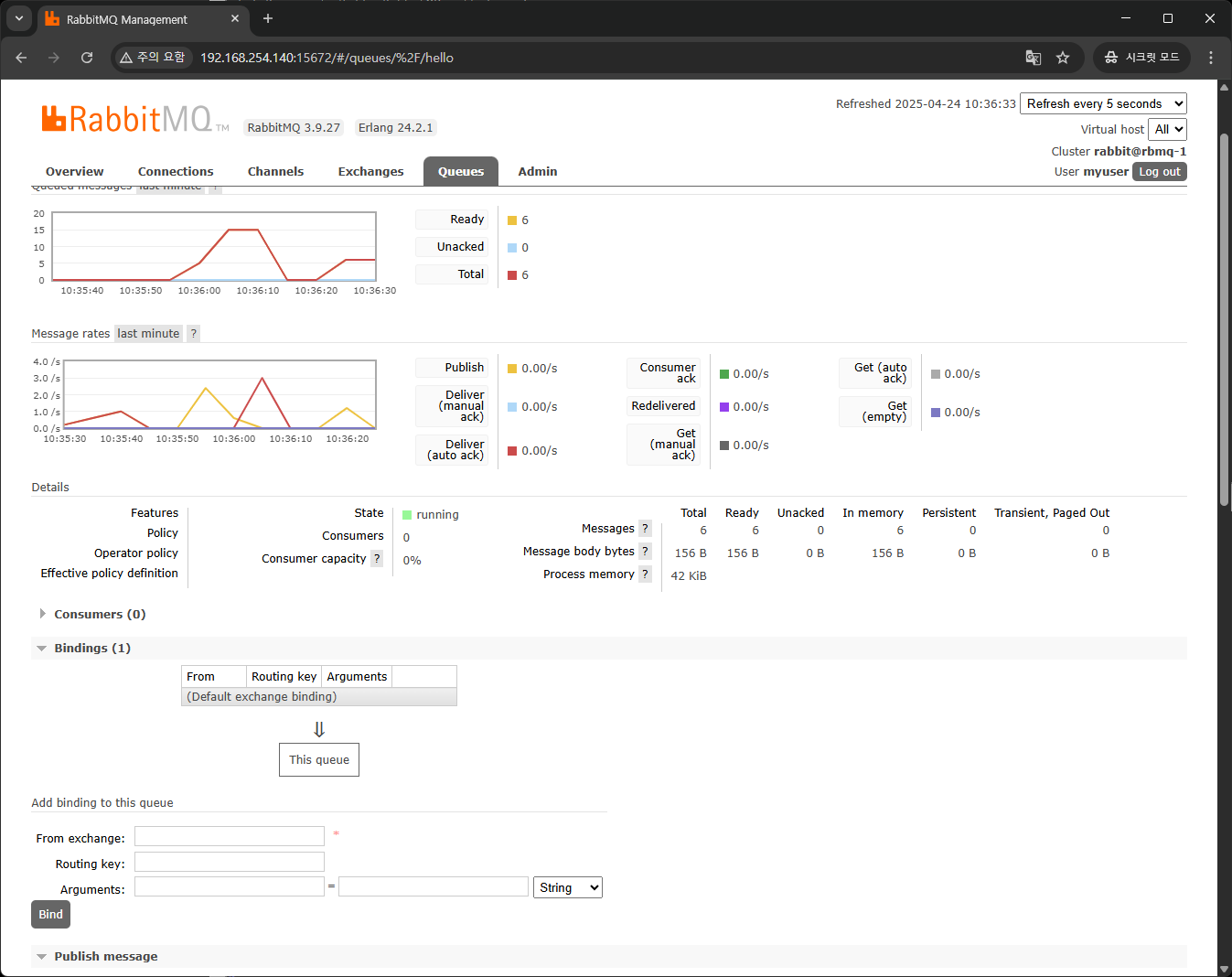
 

Details 부분에 Messages Ready와 In memory가 6으로 되어있는 것을 확인할 수 있습니다.


Queue에 저장된 메시지가 구독자에 의해 처리되어야 하는데 연결이 끊겨 아직 Queue에 쌓여 있는 것입니다.


이제 Subscriber를 실행하면

(venv) lejus@subscriber:~$ python consumer.py
 [*] Waiting for messages...
 [x] Received: Hello RabbitMQ with login!
 [x] Received: Hello RabbitMQ with login!
 [x] Received: Hello RabbitMQ with login!
 [x] Received: Hello RabbitMQ with login!
 [x] Received: Hello RabbitMQ with login!
 [x] Received: Hello RabbitMQ with login!


Queue에 쌓여 있던 메시지가 모두 수신되는 것을 확인할 수 있습니다.


마무리

이번 AMQP예제를 통해서 어떻게 메시지가 처리되는지에 대해 알 수 있었습니다.

'Study' 카테고리의 다른 글

[MQ] 에 대해서  (0) 2025.04.24
[Rack Tables] 설치  (5) 2024.12.24

MQ

이번 프로젝트를 진행하면서 MQ와 관련된 내용들이 많이 있어 정리하려고 합니다.


MQ(Message Queue)는 메시지를 큐에 저장하고, 필요한 시점에 꺼내어 처리할 수 있도록 해주는 시스템으로, 메시지를 효율적으로 주고받기 위한 MOM(Message-Oriented Middleware, 메시지 지향 미들웨어)의 한 종류입니다.


메시지 생성자(Producer)와 메시지 수신자(Consumer) 사이에서 중간에서 메시지를 받아 임시로 보관하고, 다시 전달하는 역할을 하므로 Broker라고도 불립니다.


MQ를 사용하는 이유

MQ를 사용하는 이유는 다음과 같습니다.

1. 데이터 유실 방지

기존 방식에서는 메시지를 직접 수신자(Consumer)에게 보내는 구조이기 때문에, 수신자가 꺼져 있거나 오류가 발생하면 메시지가 손실될 수 있습니다.

하지만 MQ는 중간에 Broker가 메시지를 받아 Queue에 저장하기 때문에, 수신자가 잠시 중단되어 있어도 나중에 다시 연결되었을 때 누락 없이 모든 메시지를 순차적으로 수신할 수 있습니다.

예시: IoT 센서가 주기적으로 데이터를 보내는데 서버가 재시작되는 상황에서도 데이터를 놓치지 않고 수신 가능.


2. 비동기 처리로 시스템 효율 향상

Producer와 Consumer가 직접 연결되어 있으면, Producer는 Consumer가 응답할 때까지 기다려야 합니다.
하지만 MQ를 사용하면 Producer는 메시지만 큐에 넣고 바로 다음 작업을 처리할 수 있기 때문에, 처리 속도가 빨라지고 시스템이 훨씬 유연해집니다.

예시: 사용자가 웹사이트에서 주문을 완료하면, 주문 정보는 MQ를 통해 백엔드 시스템으로 전달되고, 결제/배송 처리는 비동기적으로 진행됨.


3. 서비스 간 결합도 감소 (Decoupling)

Producer는 메시지를 큐에 넣기만 하면 되고, 누가 언제 어떻게 처리할지는 몰라도 됩니다.
Consumer는 큐에 들어온 메시지를 처리할 뿐, 누가 메시지를 보냈는지는 몰라도 됩니다.
이런 구조는 서로 독립적인 서비스 개발과 유지보수에 매우 유리합니다.

예시: 이메일 전송, SMS 알림, 푸시 메시지 등 다양한 알림 서비스가 동일한 메시지를 각각 처리할 수 있음.


4. 확장성과 유연한 메시지 처리

MQ를 사용하면 Consumer 수를 자유롭게 늘릴 수 있어, 많은 양의 메시지가 동시에 들어와도 여러 Consumer가 병렬로 처리할 수 있습니다.
또한 우선순위에 따라 다른 큐로 나누거나, 지연 처리(Delayed Queue) 등의 전략도 가능합니다.

예시: 대규모 이벤트 등록 시 수천 개의 요청을 동시에 받아도, Worker 수를 조절해 탄력적으로 처리 가능.


5. 재시도 및 장애 복구 지원

Consumer가 일시적으로 장애가 나도 MQ는 메시지를 큐에 보관하고 재시도할 수 있습니다.
또한 메시지 처리가 실패하면 다시 큐에 넣어 재전송하는 등의 정책 설정도 가능합니다.


MQ 프로토콜

MQ는 단순한 메시지 송수신 구조가 아니라, 중간에 메시지를 전달하고 분배하는 역할을 하는 Broker가 개입합니다.


이 구조에서는 메시지를 어떤 기준으로 어떤 Queue에 전달할지를 정해야 하며, 이를 위해 명확한 메시징 프로토콜과 구성 요소가 필요합니다.


기본 용어 정리

  • Producer (Publisher)
    메시지를 생성하여 MQ에 전송하는 주체입니다.
  • Consumer (Subscriber)
    메시지를 MQ에서 받아서 처리하는 주체입니다. 예: 결제 처리 서비스
  • Queue
    메시지를 임시로 저장하는 공간입니다. 메시지는 여기서 대기하다가 Consumer가 처리합니다.
  • Exchange
    메시지를 받아 어떤 Queue에 보낼지를 결정하는 라우팅 역할을 합니다.
    (중간 관리자 느낌이라고 보면 됩니다.)
  • Binding
    Exchange와 Queue를 연결할 때 사용하는 규칙입니다.
    어떤 조건의 메시지를 어떤 Queue에 보낼지를 정합니다.
  • routing_key
    Producer가 메시지를 보낼 때 함께 지정하는 "주소" 같은 역할입니다.
    Exchange는 이 값을 기준으로 메시지를 라우팅합니다.

Exchange의 종류

1. Direct Exchange

  • 정확히 일치하는 routing_key를 가진 Queue에만 메시지를 전달합니다.
  • 마치 편지 봉투에 '서울시 강남구'라고 써 있으면, 정확히 그 주소의 집으로만 가는 느낌입니다.

🔹 예시:

routing_key = "email.send" 
Binding Key = "email.send"
→ 전달됨
routing_key = "email.update" 
Binding Key = "email.send" 
→ 전달 안 됨

2. Fanout Exchange

  • 모든 연결된 Queue에 무조건 전달합니다.
  • routing_key는 무시됩니다.
  • 마치 방송국이 전파를 퍼뜨리는 느낌입니다.

🔹 예시:

  • 알림 시스템에서 "새 게시물 생성됨" 이벤트를 보내면:
    • 이메일 알림
    • 앱 푸시 알림
    • 슬랙 메시지
      이 3개 Queue에 동시에 메시지 전달됨.

3. Topic Exchange

  • 패턴 기반으로 routing_key와 Binding Key를 비교하여 메시지를 라우팅합니다.
  • 와일드카드(*, #)를 사용할 수 있어 유연한 라우팅이 가능합니다.
와일드카드의미
* 정확히 하나의 단어와 일치
# 0개 이상의 단어와 일치

🔹 예시:

  • Binding Key: sensor.*
    • routing_key =  sensor.temp  → ✅ 전달됨
    • routing_key =  sensor.humidity   → ✅ 전달됨
    • routing_key =   sensor.temp.rom1  → ❌ 전달 안 됨
  • Binding Key: sensor.#
    • routing_key =  sensor  → ✅ 전달됨
    • routing_key =  sensor.temp  → ✅ 전달됨
    • routing_key =  sensor.temp.rom1  → ✅ 전달됨

4. Headers Exchange

  • routing_key를 사용하지 않고, 메시지에 포함된 헤더 값을 기준으로 메시지를 라우팅합니다.
  • 조건은 헤더에 지정된 키-값 쌍이 Queue의 Binding 조건과 일치해야 합니다.
  • 보다 복잡하거나 유연한 조건 기반 라우팅에 유리합니다.

🔹 예시:


메시지 헤더:

{
  "type": "email",
  "priority": "high"
}


Queue A의 Binding 조건:

{ 
  "x-match": "all", 
  "type": "email", 
  "priority": "high" 
}

→ 조건이 모두 일치하므로 메시지 전달됨.

 x-match: any 로 설정하면 조건 중 하나만 일치해도 메시지가 전달됩니다.


대표적인 MQ 프로토콜 및 시스템

AMQP (Advanced Message Queuing Protocol)

  • 다양한 시스템 간의 메시지를 안정적으로 전달하기 위한 프로토콜
  • RabbitMQ는 AMQP를 사용하는 대표적인 메시징 시스템

MQTT (Message Queuing Telemetry Transport)

  • 사물인터넷(IoT) 환경에서 많이 사용되는 경량 메시징 프로토콜
  • 낮은 대역폭과 낮은 전력 환경에서 효과적
  • Publish/Subscribe 구조를 채택
  • 대표적인 브로커: Mosquitto, HiveMQ 등

Kafka

  • 대용량 데이터 스트림 처리에 최적화된 분산 메시징 시스템
  • 메시지를 토픽(Topic) 단위로 분류하며, 로그 수집/분석, 실시간 데이터 처리에 자주 사용됨

NATS

  • 경량화된 메시지 브로커로, 빠른 속도와 단순한 구조가 장점
  • Microservices 간 통신에 적합
  • 대용량 처리에 적합함

마치며

MQ를 몰랐던 때에는 로그 손실에 대한 걱정을 많이 했었는데 이번 프로젝트를 맡게 되면서 좋은 시스템을 알게 되었습니다.

'Study' 카테고리의 다른 글

[RabbitMQ] 개념 및 사용법  (0) 2025.04.24
[Rack Tables] 설치  (5) 2024.12.24
개요


전산장비 유지보수 업무를 하다 보면 랙 실장도가 필요할 때가 있는데 이를 잘 관리할 수 있는 오픈소스가 있어 사용해보니 정말 탄탄하고 좋은 것 같아서 작성해봅니다


https://www.racktables.org/


RackTables

RackTables is a nifty and robust solution for datacenter and server room asset management. It helps document hardware assets, network addresses, space in racks, networks configuration and much much more!

www.racktables.org


설치 환경


  • VMware
  • OS : Ubuntu 20.04
  • CPU : 2vCPU
  • Memory : 4GB
  • HDD : 50GB
  • IP : 192.168.111.50


OS 설치


우선 Rack Tables에서 제공되는 메뉴얼을 살펴보면 다음과 같습니다.


RackTables uses a web-server with PHP (7.0 is the minimum required version, 7.1
is the minimum tested version, 7.3 is the recommended version) for front-end and
a MySQL/MariaDB server version 5 or later for back-end. The most commonly used
web-server for RackTables is Apache httpd.

- PHP 버전 7.0 이상 7.3 권장
- MySQL/MariaDB는 5버전 이상을 권장
- Web Server는 어떠한 것을 사용해도 되지만, Apache를 보편적으로 가장 많이 사용함


위 조건만 충족되면 어떠한 OS에서 진행해도 무방하며, 저는 Ubuntu 20.04 버전을 설치했습니다


https://releases.ubuntu.com/focal/


Ubuntu 20.04.6 LTS (Focal Fossa)

Select an image Ubuntu is distributed on three types of images described below. Desktop image The desktop image allows you to try Ubuntu without changing your computer at all, and at your option to install it permanently later. This type of image is what m

releases.ubuntu.com


OS 설치 과정은 특별한 부분이 없으니 넘어가겠습니다


Rack Tables 의존 패키지 설치


각 OS 및 버전 별로 지원되는 설치 명령어 및 설정이 상이하니 참고하여 설치합니다

### 1.1. Install MySQL/MariaDB server

| Distribution       | How to do                                                               |
| ------------------ | ----------------------------------------------------------------------- |
| Debian 7           | `aptitude install mysql-server-5.1`                                     |
| Fedora 26          | `dnf install mariadb-server mariadb`                                    |
| Fedora 32          | `dnf install mariadb-server`                                            |
| FreeBSD 10         | `pkg install mysql56-server`                                            |
| openSUSE 42.1      | `zypper install mysql-community-server`                                 |
| Scientific&nbsp;Linux&nbsp;6 | `yum install mysql-server mysql` |
| Ubuntu 18.04       | `apt-get install mysql-server`                                          |
| Ubuntu 20.04       | `apt-get install mariadb-server`                                        |
| RHEL 7             | `yum install -y mariadb-server mariadb`                                 |

### 1.2. Enable Unicode in the MySQL/MariaDB server

| Distribution       | How to do                                                                                                          |
| ------------------ | ------------------------------------------------------------------------------------------------------------------ |
| Debian 7           | add `character-set-server=utf8` line to `[mysqld]` section of `/etc/mysql/my.cnf` file and restart mysqld          |
| Fedora 26-32       | ```printf "[mysqld]\ncharacter-set-server=utf8\n" > /etc/my.cnf.d/mysqld-charset.cnf; systemctl restart mariadb``` |
| openSUSE 42.1      | No action required, comes configured for UTF-8 by default.                                                         |
| Scientific&nbsp;Linux&nbsp;6 | add `character-set-server=utf8` line to `[mysqld]` section of `/etc/my.cnf` file and restart mysqld |
| Ubuntu 18.04       | ```printf "[mysqld]\ncharacter-set-server=utf8\n" > /etc/mysql/conf.d/charset.cnf; service mysql restart```        |
| Ubuntu 20.04       | No action required, comes configured for UTF-8 by default.                                                         |
| RHEL 7             | add `character-set-server=utf8` line to `[server]` section of `/etc/my.cnf.d/server.cnf` file and restart mysqld   |

### 1.3. Install PHP and Apache httpd (or nginx)

| Distribution       | How to do                                                                            |
| ------------------ | ------------------------------------------------------------------------------------ |
| Debian 7 (nginx)   | `aptitude install nginx php5-fpm` **(see note below)**                               |
| Fedora 26-32       | `dnf install httpd php php-mysqlnd php-pdo php-gd php-snmp php-mbstring php-bcmath`  |
| FreeBSD 10         | see note 1.3.c                                                                       | 
| openSUSE 42.1      | `zypper install apache2-mod_php5 php5-gd php5-mbstring php5-mysql php5-bcmath`       |
| Scientific&nbsp;Linux&nbsp;6 | `yum install httpd php php-mysql php-pdo php-gd php-mbstring php-bcmath` |
| Ubuntu 18.04       | `apt-get install apache2-bin libapache2-mod-php7.2 php7.2-gd php7.2-mysql php7.2-mbstring php7.2-bcmath php7.2-json php7.2-snmp`
| Ubuntu 20.04       | `apt-get install apache2-bin libapache2-mod-php7.4 php7.4-gd php7.4-mysql php7.4-mbstring php7.4-bcmath php7.4-json php7.4-snmp`
| RHEL 7             | `subscription-manager repos --enable=rhel-server-rhscl-7-rpms`
|                    | `yum install httpd24 rh-php70 rh-php70-php-mysqlnd rh-php70-php-pdo rh-php70-php-gd rh-php70-php-snmp rh-php70-php-mbstring rh-php70-php-bcmath rh-php70-php-ldap rh-php70-php`


저는 Ubuntu 20.04이므로 mariadb-server와 apache2, php-7.4 하위 의존 패키지를 설치했습니다


Rack Tables 설치 및 설정


대부분 아래 메뉴얼을 참고하여 진행하는데 경로가 살짝씩 바뀐 부분이 있습니다

##### Common install steps
Apache users should create a racktables.conf file under their apache
Includes directory with the following contents:
```
AddType  application/x-httpd-php         .php
AddType  application/x-httpd-php-source  .phps

<Directory /usr/local/www/racktables/wwwroot>
	DirectoryIndex index.php
	Require all granted
</Directory>
Alias /racktables /usr/local/www/racktables/wwwroot
```

Start services:
```
# echo 'apache24_enable="YES"' >> /etc/rc.conf
# service apache24 start
# echo 'mysql_enable="YES"' >> /etc/rc.conf
# service mysql-server start
```

Browse to http://address.to.your.server/racktables/index.php and follow the instructions.

Note: set `secret.php` permissions when prompted.
```
# chown www:www /usr/local/www/racktables/wwwroot/inc/secret.php
# chmod 400 /usr/local/www/racktables/wwwroot/inc/secret.php
```


1. 설치 파일 다운로드

$ cd /var/www
$ sudo wget https://sourceforge.net/projects/racktables/files/RackTables-0.22.0.tar.gz


2. 압축해제

$ sudo tar xzvf RackTables-0.22.0.tar.gz


3. 소프트 링크 설정

$ sudo ln -s RackTables-0.22.0 racktables


4. Apache 디렉토리에 racktables.conf 파일을 생성한 후 내용을 추가합니다.

$ cd /etc/apache2/
$ sudo vi racktables.conf

AddType  application/x-httpd-php         .php
AddType  application/x-httpd-php-source  .phps

<Directory /var/www/racktables/wwwroot>
	DirectoryIndex index.php
	Require all granted
</Directory>
Alias /racktables /var/www/racktables/wwwroot

:wq


5. apache2.conf 설정 파일에 내용을 추가합니다

$ pwd
/etc/apache2
$ sudo vi apache2.conf

...
LogLevel warn

# Include module configuration:
IncludeOptional mods-enabled/*.load
IncludeOptional mods-enabled/*.conf

# Include list of ports to listen on
Include ports.conf
Include racktables.conf ## 해당 내용 추가!!!!

...

:wq


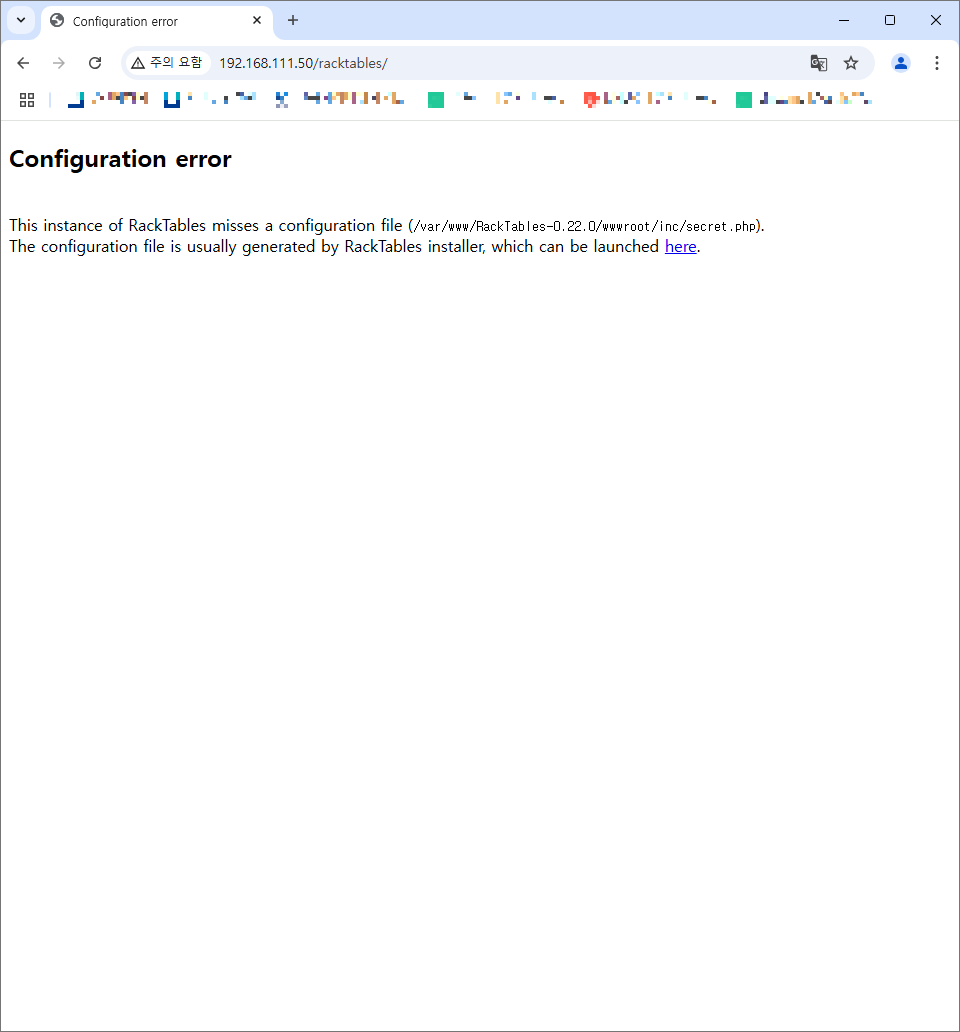
6. http://192.168.111.50/racktables/ 접속을 확인한 후 하이퍼링크 되어있는 here를 클릭합니다.


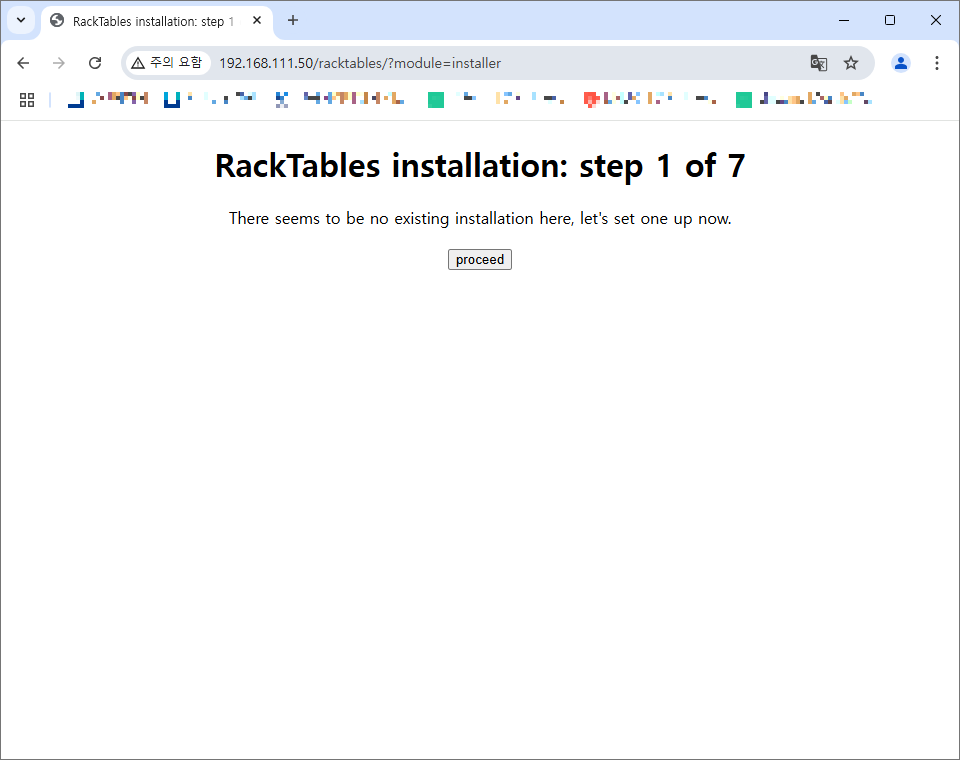
7. 설치 마법사 화면이 출력되면 proceed를 누릅니다


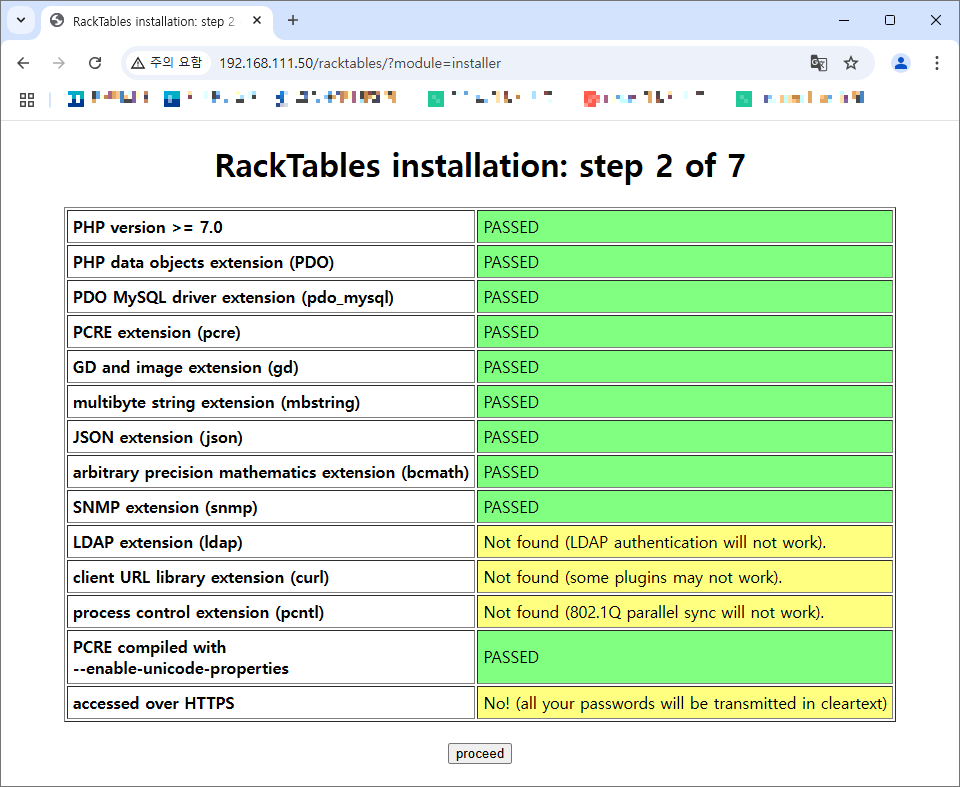
8. 패키지 설치가 되어있는지 확인하는 화면인데 노란색(LDAP, curl, pcntl, https)으로 칠해진 부분은 필수는 아니고 추후 설정이 가능하므로 이번에는 그냥 넘어갑니다


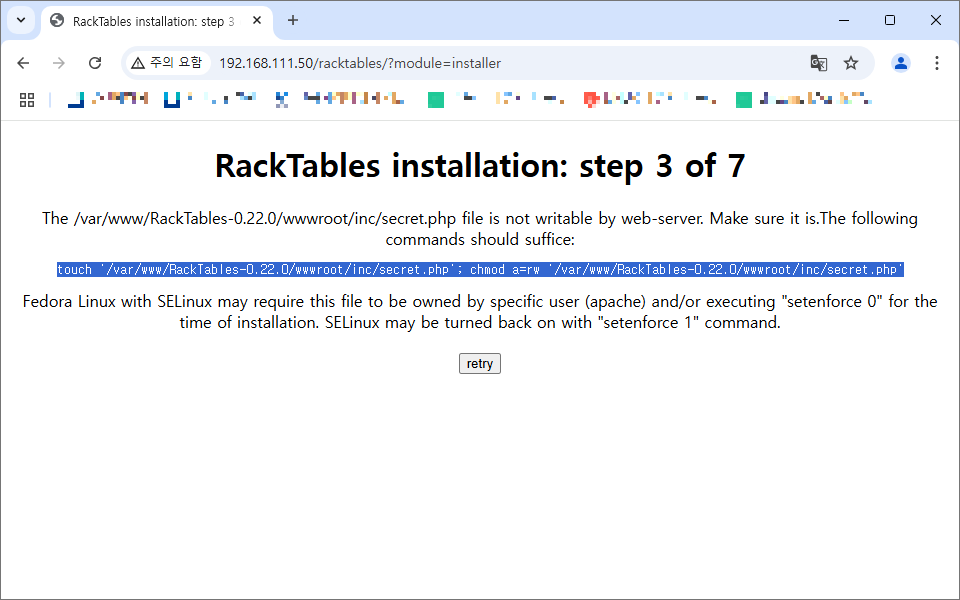
9. 화면에 적힌 touch ~ 부분을 복사해서 파일을 생성한 후 retry를 눌러줍니다

$ sudo touch /var/www/racktables/wwwroot/inc/secret.php
$ sudo chmod a=rw /var/www/racktables/wwwroot/inc/secret.php


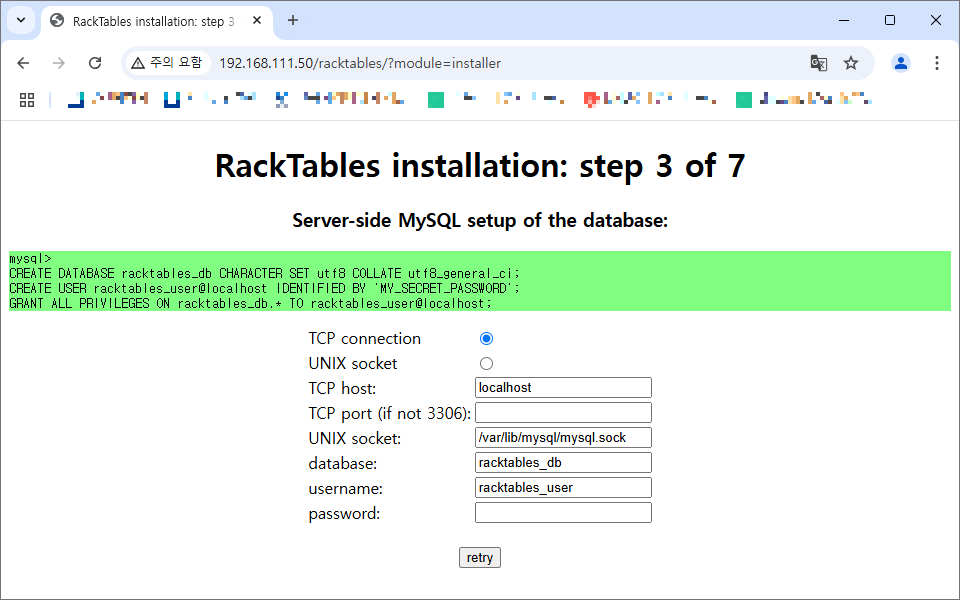
10. mysql 접속 후 초록색 하이라이트 부분을 복사해 입력해줍니다.

$ sudo mysql

Welcome to the MariaDB monitor.  Commands end with ; or \g.
Your MariaDB connection id is 38
Server version: 10.3.39-MariaDB-0ubuntu0.20.04.2 Ubuntu 20.04

Copyright (c) 2000, 2018, Oracle, MariaDB Corporation Ab and others.

Type 'help;' or '\h' for help. Type '\c' to clear the current input statement.

mysql> CREATE DATABASE racktables_db CHARACTER SET utf8 COLLATE utf8_general_ci;
Query OK, 1 row affected (0.001 sec)

mysql> CREATE USER racktables_user@localhost IDENTIFIED BY 'MY_SECRET_PASSWORD';
Query OK, 1 row affected (0.001 sec)

mysql> GRANT ALL PRIVILEGES ON racktables_db.* TO racktables_user@localhost;
Query OK, 1 row affected (0.001 sec)

mysql> exit

비밀번호는 수정하여 화면에 기입한 후 retry를 눌러줍니다


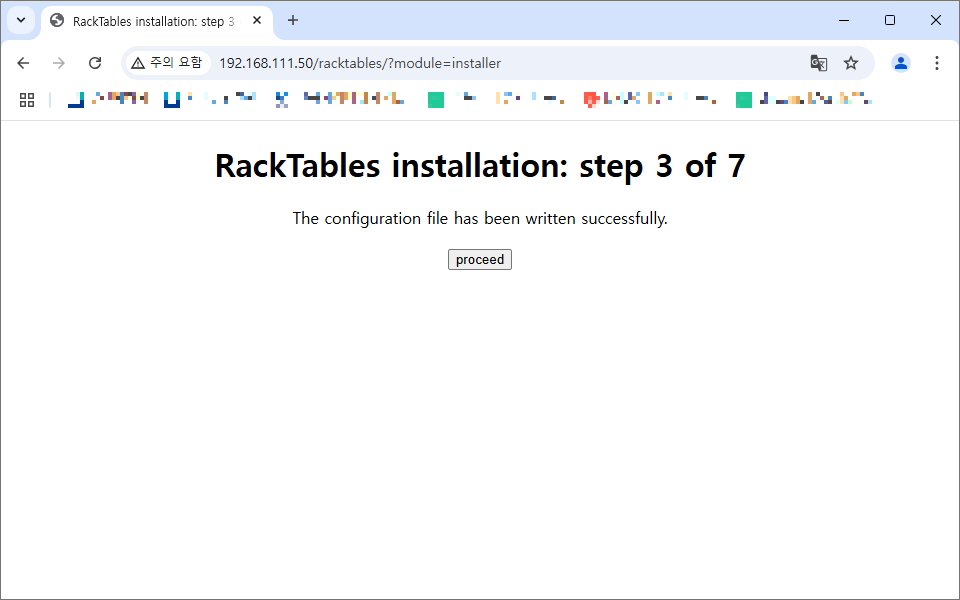
11. 데이터베이스 연결 설정이 완료되었다는 문구가 뜨면 proceed를 눌러줍니다


12. secret.php 파일에 대한 권한을 재설정한 후 retry를 누릅니다

$ sudo chown www-data:nogroup /var/www/racktables/wwwroot/inc/secret.php
$ sudo chmod 440 /var/www/racktables/wwwroot/inc/secret.php


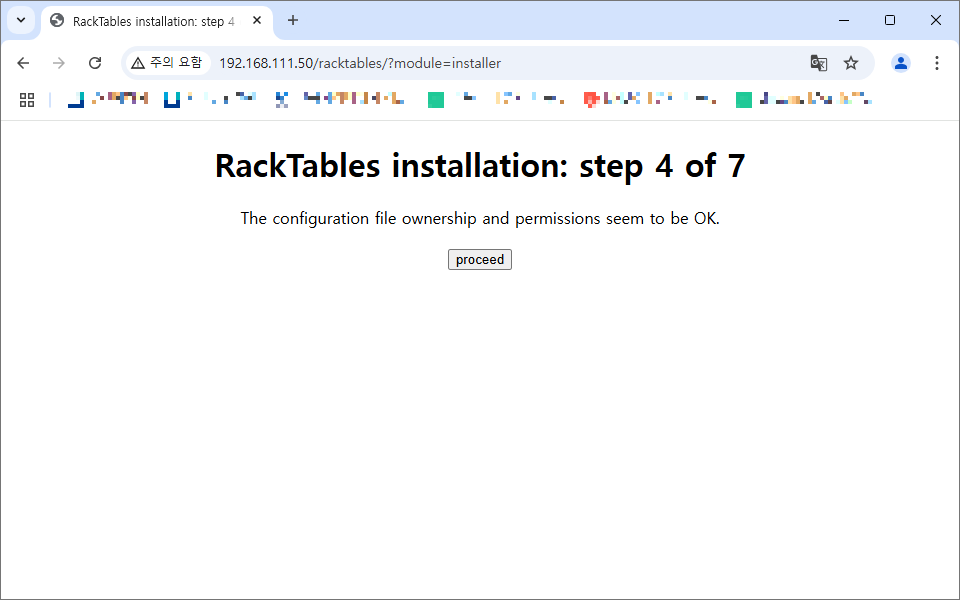
13. secret.php 파일에 대한 권한 설정이 완료되었다는 문구가 뜨면 proceed를 누릅니다


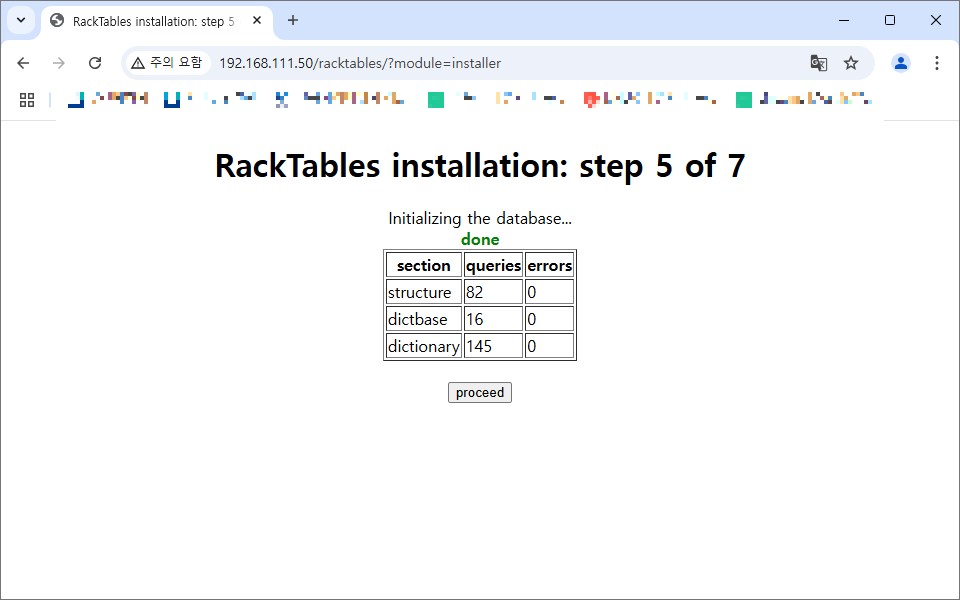
14. 데이터베이스 초기화가 완료되었다는 문구가 뜨면 proceed를 누릅니다


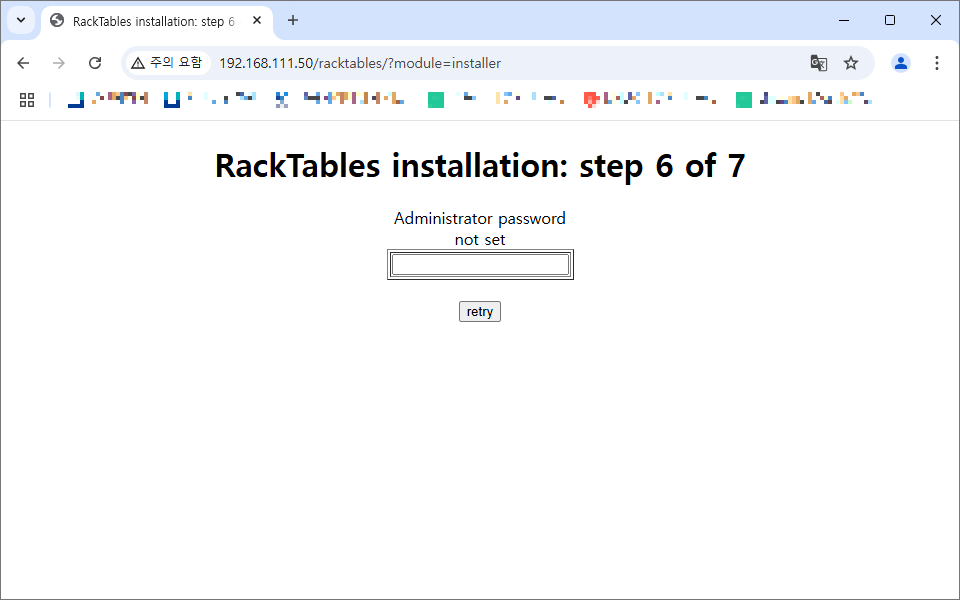
15. 관리자 계정 비밀번호가 설정되어있지 않아 설정하라는 화면입니다

      비밀번호를 입력하고 retry를 누릅니다(오타나지 않게 조심히 해주세요)


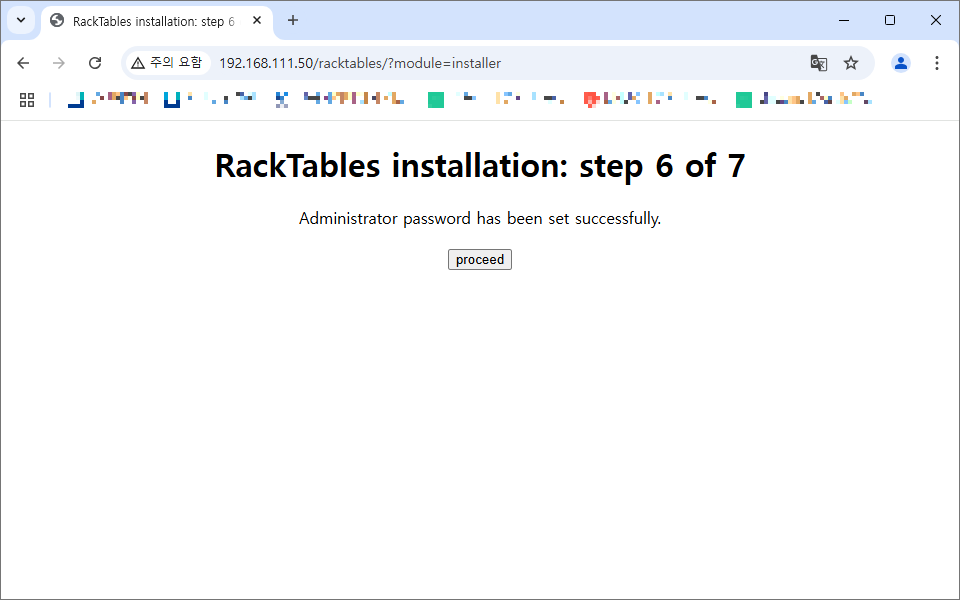
16. 관리자 비밀번호 설정이 완료되었다는 문구가 뜨면 proceed를 누릅니다


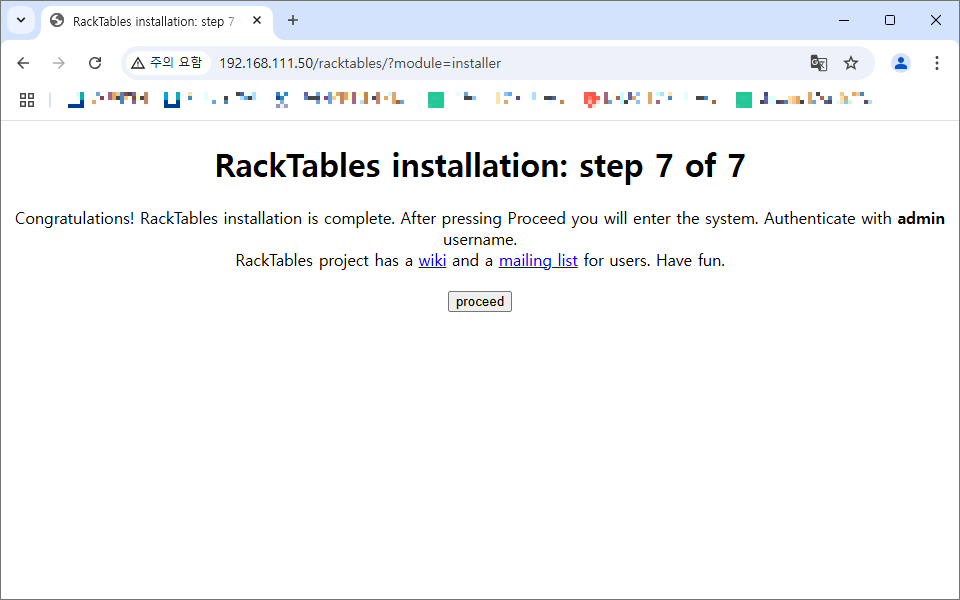
17. RackTables에 대한 초기 설정이 완료되었다는 문구가 뜨고 관리자 계정의 ID는 admin이라고 알려주네요

      proceed를 누릅니다


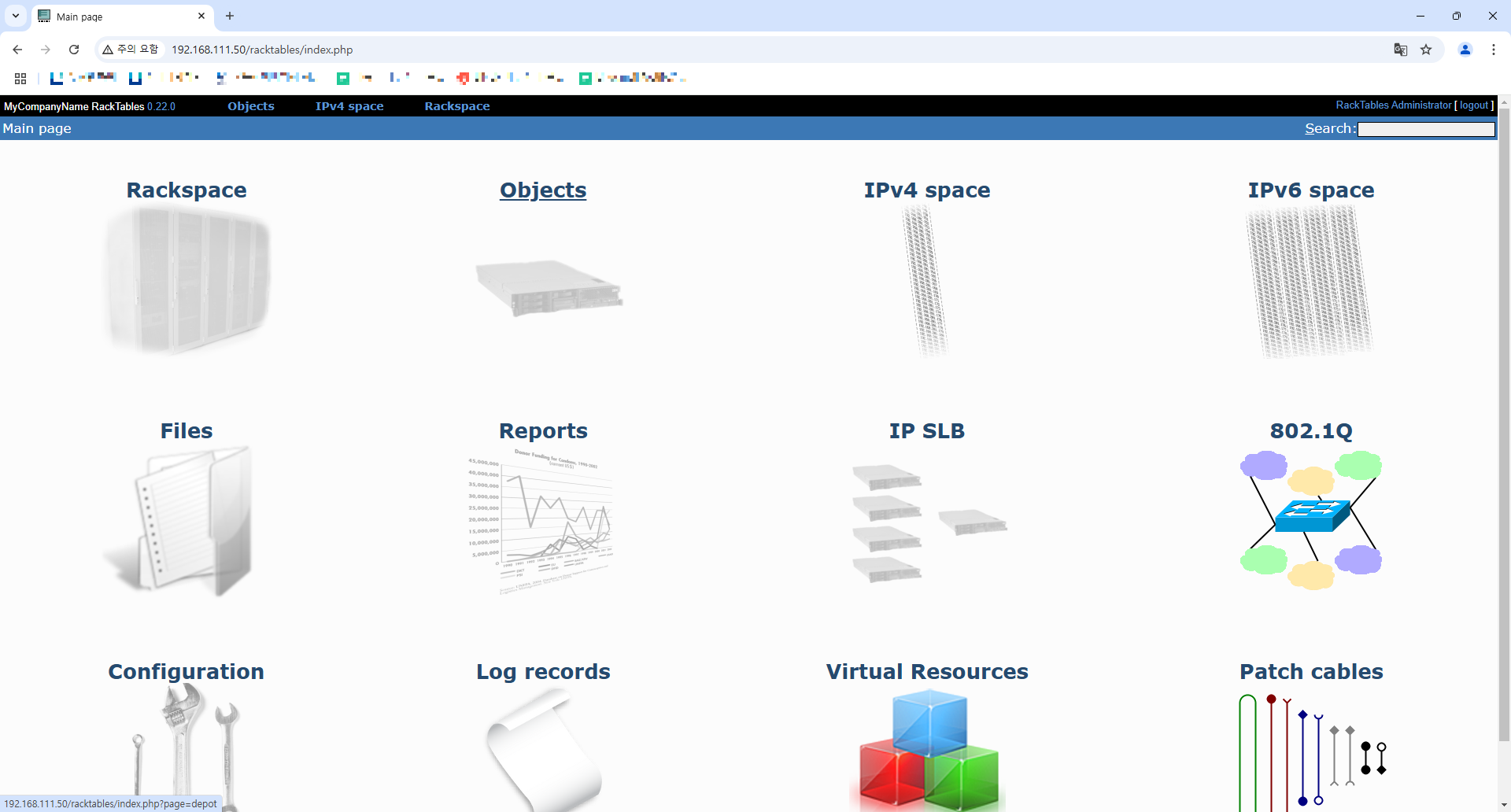
18. 완료


마무리


RackTables에서 제공하는 기능이 너무 많습니다


시간 날 때 하나씩 살펴보는 것도 좋을 것 같습니다

'Study' 카테고리의 다른 글

[RabbitMQ] 개념 및 사용법  (0) 2025.04.24
[MQ] 에 대해서  (0) 2025.04.24

+ Recent posts