개요
전산장비 유지보수 업무를 하다 보면 랙 실장도가 필요할 때가 있는데 이를 잘 관리할 수 있는 오픈소스가 있어 사용해보니 정말 탄탄하고 좋은 것 같아서 작성해봅니다
RackTables
RackTables is a nifty and robust solution for datacenter and server room asset management. It helps document hardware assets, network addresses, space in racks, networks configuration and much much more!
www.racktables.org
설치 환경
- VMware
- OS : Ubuntu 20.04
- CPU : 2vCPU
- Memory : 4GB
- HDD : 50GB
- IP : 192.168.111.50
OS 설치
우선 Rack Tables에서 제공되는 메뉴얼을 살펴보면 다음과 같습니다.
RackTables uses a web-server with PHP (7.0 is the minimum required version, 7.1
is the minimum tested version, 7.3 is the recommended version) for front-end and
a MySQL/MariaDB server version 5 or later for back-end. The most commonly used
web-server for RackTables is Apache httpd.

- PHP 버전 7.0 이상 7.3 권장
- MySQL/MariaDB는 5버전 이상을 권장
- Web Server는 어떠한 것을 사용해도 되지만, Apache를 보편적으로 가장 많이 사용함
위 조건만 충족되면 어떠한 OS에서 진행해도 무방하며, 저는 Ubuntu 20.04 버전을 설치했습니다
https://releases.ubuntu.com/focal/
Ubuntu 20.04.6 LTS (Focal Fossa)
Select an image Ubuntu is distributed on three types of images described below. Desktop image The desktop image allows you to try Ubuntu without changing your computer at all, and at your option to install it permanently later. This type of image is what m
releases.ubuntu.com
OS 설치 과정은 특별한 부분이 없으니 넘어가겠습니다
Rack Tables 의존 패키지 설치
각 OS 및 버전 별로 지원되는 설치 명령어 및 설정이 상이하니 참고하여 설치합니다
### 1.1. Install MySQL/MariaDB server

| Distribution       | How to do                                                               |
| ------------------ | ----------------------------------------------------------------------- |
| Debian 7           | `aptitude install mysql-server-5.1`                                     |
| Fedora 26          | `dnf install mariadb-server mariadb`                                    |
| Fedora 32          | `dnf install mariadb-server`                                            |
| FreeBSD 10         | `pkg install mysql56-server`                                            |
| openSUSE 42.1      | `zypper install mysql-community-server`                                 |
| Scientific Linux 6 | `yum install mysql-server mysql` |
| Ubuntu 18.04       | `apt-get install mysql-server`                                          |
| Ubuntu 20.04       | `apt-get install mariadb-server`                                        |
| RHEL 7             | `yum install -y mariadb-server mariadb`                                 |

### 1.2. Enable Unicode in the MySQL/MariaDB server

| Distribution       | How to do                                                                                                          |
| ------------------ | ------------------------------------------------------------------------------------------------------------------ |
| Debian 7           | add `character-set-server=utf8` line to `[mysqld]` section of `/etc/mysql/my.cnf` file and restart mysqld          |
| Fedora 26-32       | ```printf "[mysqld]\ncharacter-set-server=utf8\n" > /etc/my.cnf.d/mysqld-charset.cnf; systemctl restart mariadb``` |
| openSUSE 42.1      | No action required, comes configured for UTF-8 by default.                                                         |
| Scientific Linux 6 | add `character-set-server=utf8` line to `[mysqld]` section of `/etc/my.cnf` file and restart mysqld |
| Ubuntu 18.04       | ```printf "[mysqld]\ncharacter-set-server=utf8\n" > /etc/mysql/conf.d/charset.cnf; service mysql restart```        |
| Ubuntu 20.04       | No action required, comes configured for UTF-8 by default.                                                         |
| RHEL 7             | add `character-set-server=utf8` line to `[server]` section of `/etc/my.cnf.d/server.cnf` file and restart mysqld   |

### 1.3. Install PHP and Apache httpd (or nginx)

| Distribution       | How to do                                                                            |
| ------------------ | ------------------------------------------------------------------------------------ |
| Debian 7 (nginx)   | `aptitude install nginx php5-fpm` **(see note below)**                               |
| Fedora 26-32       | `dnf install httpd php php-mysqlnd php-pdo php-gd php-snmp php-mbstring php-bcmath`  |
| FreeBSD 10         | see note 1.3.c                                                                       |
| openSUSE 42.1      | `zypper install apache2-mod_php5 php5-gd php5-mbstring php5-mysql php5-bcmath`       |
| Scientific Linux 6 | `yum install httpd php php-mysql php-pdo php-gd php-mbstring php-bcmath` |
| Ubuntu 18.04       | `apt-get install apache2-bin libapache2-mod-php7.2 php7.2-gd php7.2-mysql php7.2-mbstring php7.2-bcmath php7.2-json php7.2-snmp`
| Ubuntu 20.04       | `apt-get install apache2-bin libapache2-mod-php7.4 php7.4-gd php7.4-mysql php7.4-mbstring php7.4-bcmath php7.4-json php7.4-snmp`
| RHEL 7             | `subscription-manager repos --enable=rhel-server-rhscl-7-rpms`
|                    | `yum install httpd24 rh-php70 rh-php70-php-mysqlnd rh-php70-php-pdo rh-php70-php-gd rh-php70-php-snmp rh-php70-php-mbstring rh-php70-php-bcmath rh-php70-php-ldap rh-php70-php`
저는 Ubuntu 20.04이므로 mariadb-server와 apache2, php-7.4 하위 의존 패키지를 설치했습니다
Rack Tables 설치 및 설정
대부분 아래 메뉴얼을 참고하여 진행하는데 경로가 살짝씩 바뀐 부분이 있습니다
##### Common install steps
Apache users should create a racktables.conf file under their apache
Includes directory with the following contents:
```
AddType  application/x-httpd-php         .php
AddType  application/x-httpd-php-source  .phps

<Directory /usr/local/www/racktables/wwwroot>
	DirectoryIndex index.php
	Require all granted
</Directory>
Alias /racktables /usr/local/www/racktables/wwwroot
```

Start services:
```
# echo 'apache24_enable="YES"' >> /etc/rc.conf
# service apache24 start
# echo 'mysql_enable="YES"' >> /etc/rc.conf
# service mysql-server start
```

Browse to http://address.to.your.server/racktables/index.php and follow the instructions.

Note: set `secret.php` permissions when prompted.
```
# chown www:www /usr/local/www/racktables/wwwroot/inc/secret.php
# chmod 400 /usr/local/www/racktables/wwwroot/inc/secret.php
```
1. 설치 파일 다운로드
$ cd /var/www
$ sudo wget https://sourceforge.net/projects/racktables/files/RackTables-0.22.0.tar.gz
2. 압축해제
$ sudo tar xzvf RackTables-0.22.0.tar.gz
3. 소프트 링크 설정
$ sudo ln -s RackTables-0.22.0 racktables
4. Apache 디렉토리에 racktables.conf 파일을 생성한 후 내용을 추가합니다.
$ cd /etc/apache2/
$ sudo vi racktables.conf

AddType  application/x-httpd-php         .php
AddType  application/x-httpd-php-source  .phps

<Directory /var/www/racktables/wwwroot>
	DirectoryIndex index.php
	Require all granted
</Directory>
Alias /racktables /var/www/racktables/wwwroot

:wq
5. apache2.conf 설정 파일에 내용을 추가합니다
$ pwd
/etc/apache2
$ sudo vi apache2.conf

...
LogLevel warn

# Include module configuration:
IncludeOptional mods-enabled/*.load
IncludeOptional mods-enabled/*.conf

# Include list of ports to listen on
Include ports.conf
Include racktables.conf ## 해당 내용 추가!!!!

...

:wq
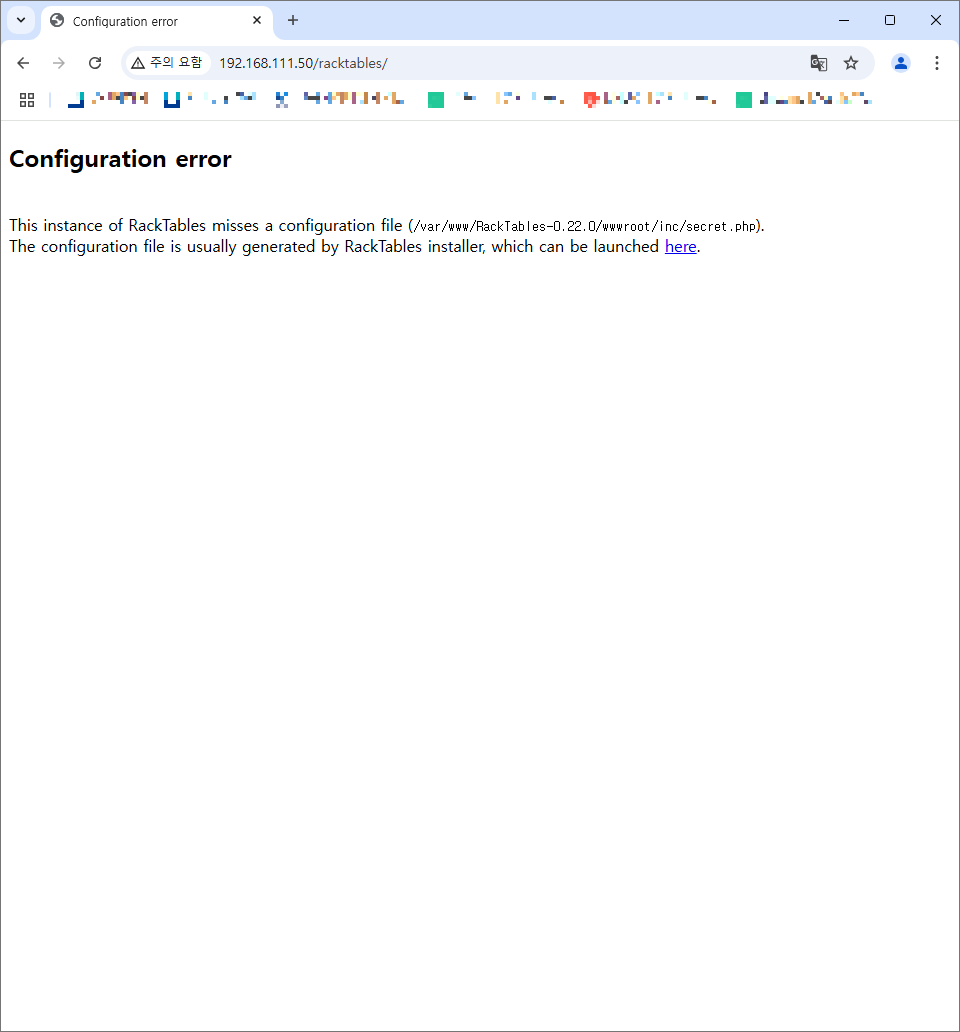
6. http://192.168.111.50/racktables/ 접속을 확인한 후 하이퍼링크 되어있는 here를 클릭합니다.
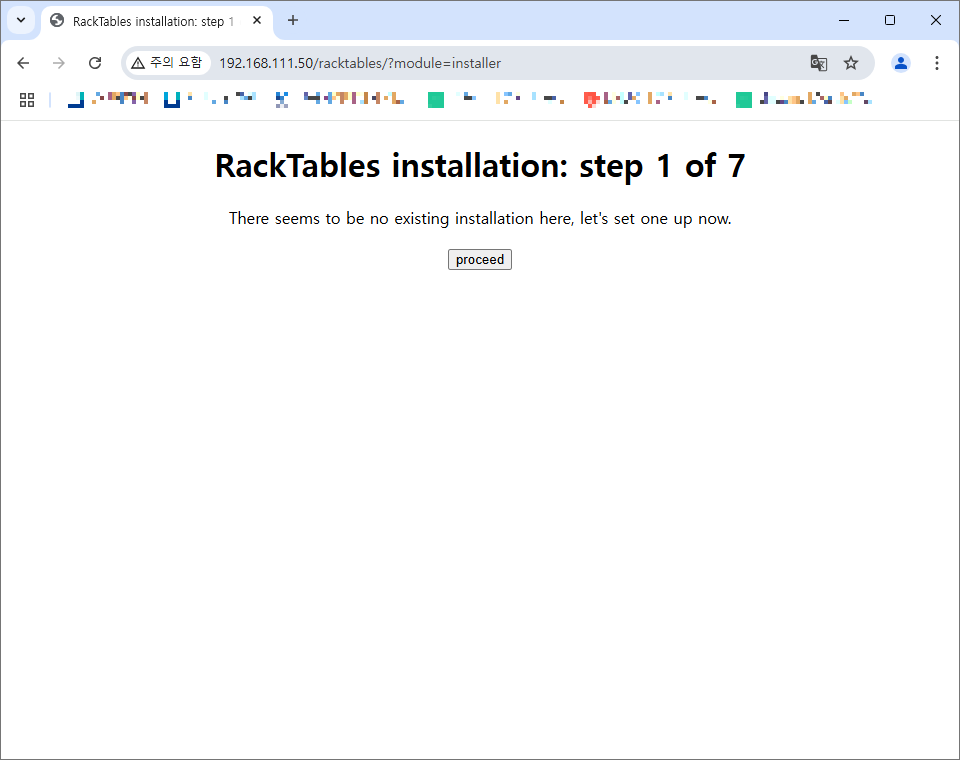
7. 설치 마법사 화면이 출력되면 proceed를 누릅니다
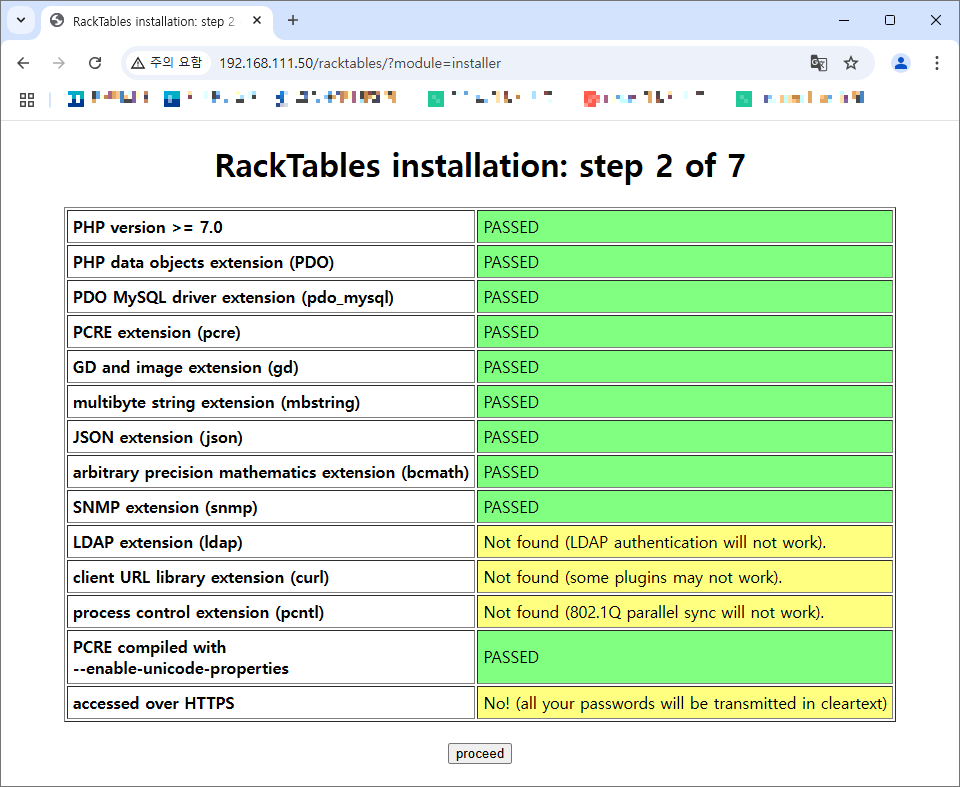
8. 패키지 설치가 되어있는지 확인하는 화면인데 노란색(LDAP, curl, pcntl, https)으로 칠해진 부분은 필수는 아니고 추후 설정이 가능하므로 이번에는 그냥 넘어갑니다
9. 화면에 적힌 touch ~ 부분을 복사해서 파일을 생성한 후 retry를 눌러줍니다
$ sudo touch /var/www/racktables/wwwroot/inc/secret.php
$ sudo chmod a=rw /var/www/racktables/wwwroot/inc/secret.php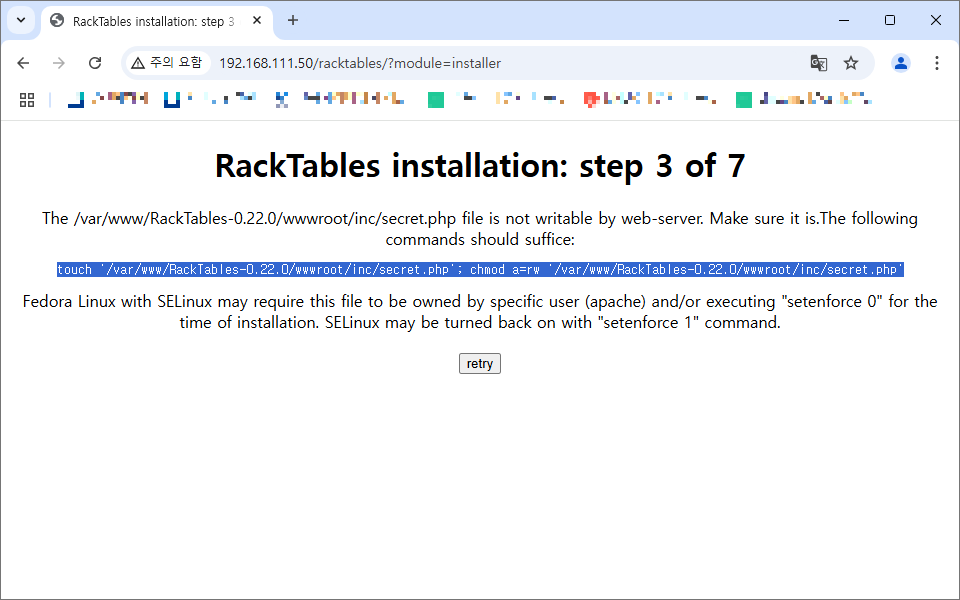
10. mysql 접속 후 초록색 하이라이트 부분을 복사해 입력해줍니다.
$ sudo mysql

Welcome to the MariaDB monitor.  Commands end with ; or \g.
Your MariaDB connection id is 38
Server version: 10.3.39-MariaDB-0ubuntu0.20.04.2 Ubuntu 20.04

Copyright (c) 2000, 2018, Oracle, MariaDB Corporation Ab and others.

Type 'help;' or '\h' for help. Type '\c' to clear the current input statement.

mysql> CREATE DATABASE racktables_db CHARACTER SET utf8 COLLATE utf8_general_ci;
Query OK, 1 row affected (0.001 sec)

mysql> CREATE USER racktables_user@localhost IDENTIFIED BY 'MY_SECRET_PASSWORD';
Query OK, 1 row affected (0.001 sec)

mysql> GRANT ALL PRIVILEGES ON racktables_db.* TO racktables_user@localhost;
Query OK, 1 row affected (0.001 sec)

mysql> exit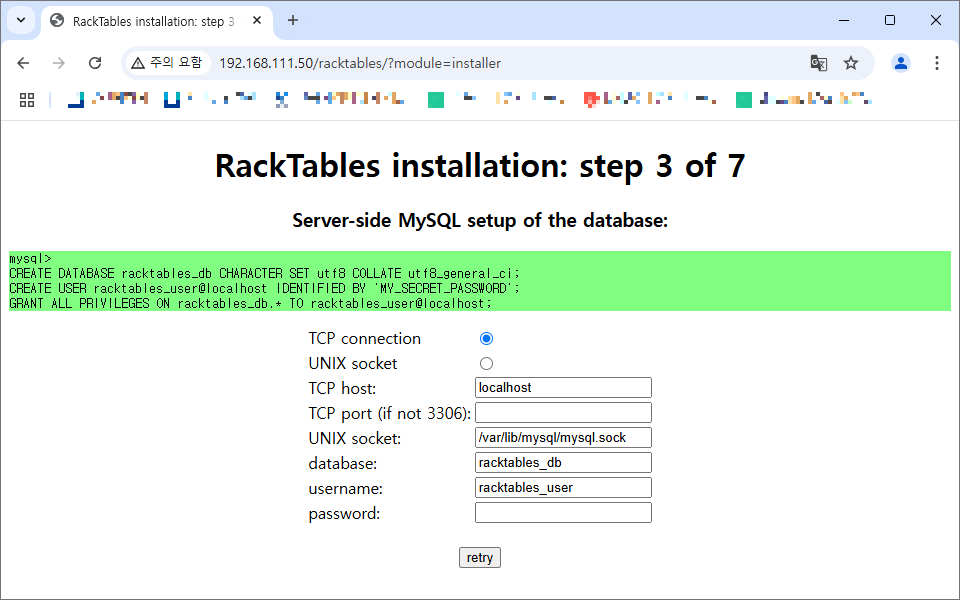
비밀번호는 수정하여 화면에 기입한 후 retry를 눌러줍니다
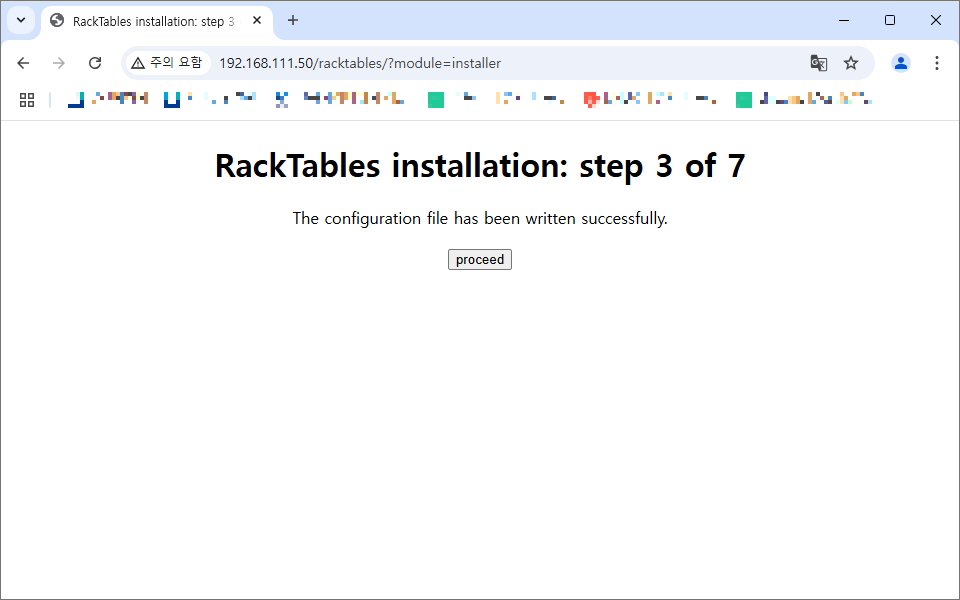
11. 데이터베이스 연결 설정이 완료되었다는 문구가 뜨면 proceed를 눌러줍니다
12. secret.php 파일에 대한 권한을 재설정한 후 retry를 누릅니다
$ sudo chown www-data:nogroup /var/www/racktables/wwwroot/inc/secret.php
$ sudo chmod 440 /var/www/racktables/wwwroot/inc/secret.php
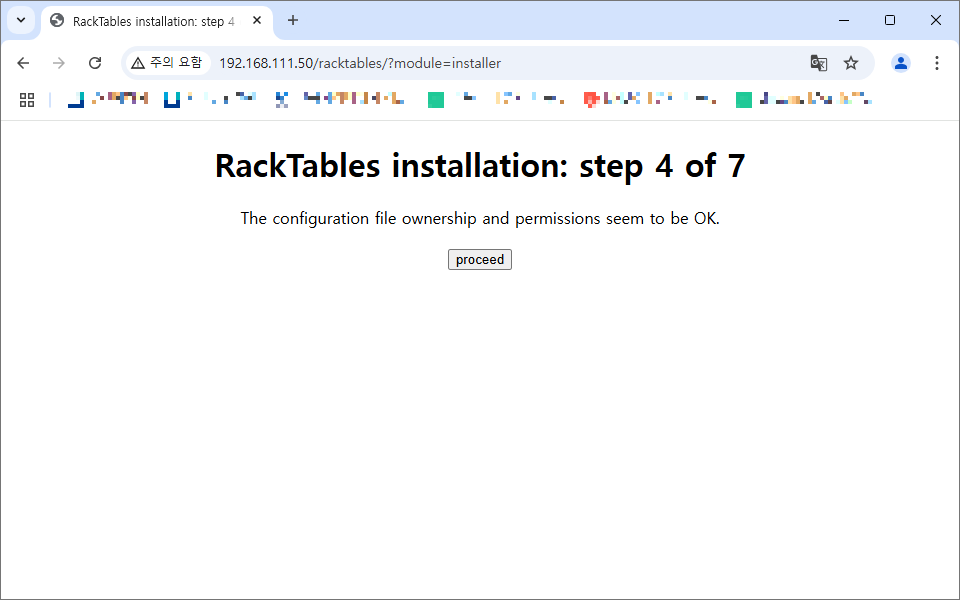
13. secret.php 파일에 대한 권한 설정이 완료되었다는 문구가 뜨면 proceed를 누릅니다
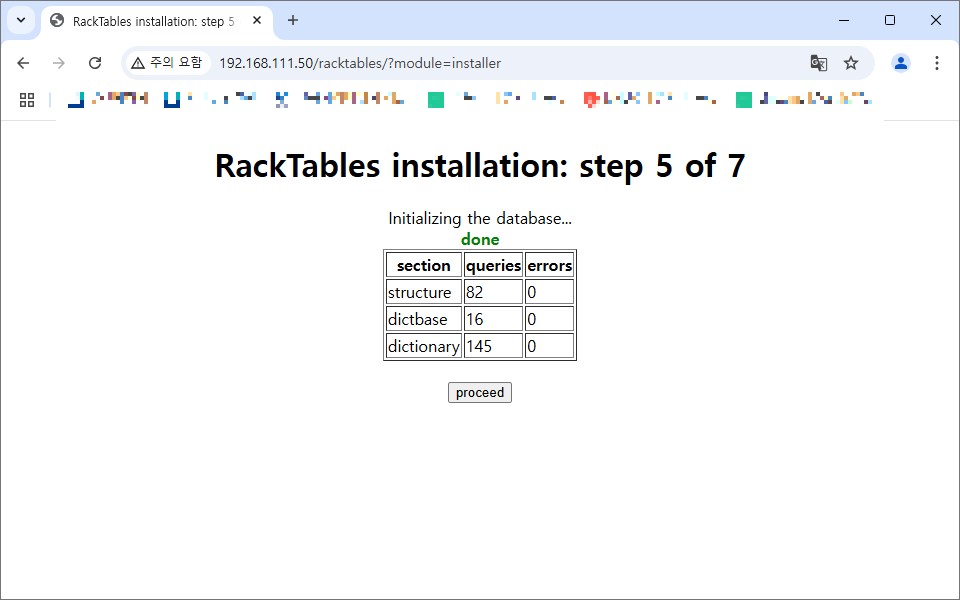
14. 데이터베이스 초기화가 완료되었다는 문구가 뜨면 proceed를 누릅니다
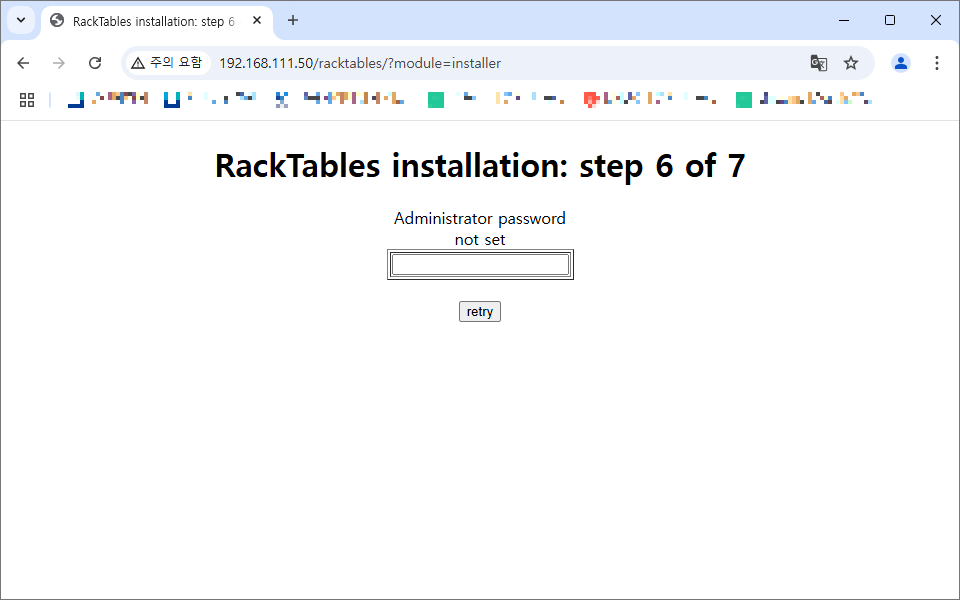
15. 관리자 계정 비밀번호가 설정되어있지 않아 설정하라는 화면입니다
비밀번호를 입력하고 retry를 누릅니다(오타나지 않게 조심히 해주세요)
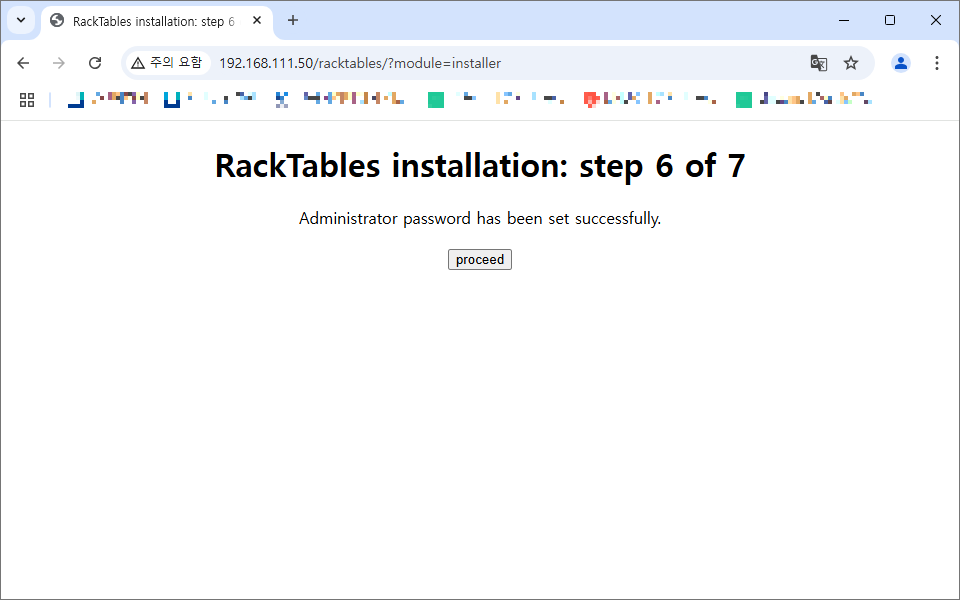
16. 관리자 비밀번호 설정이 완료되었다는 문구가 뜨면 proceed를 누릅니다
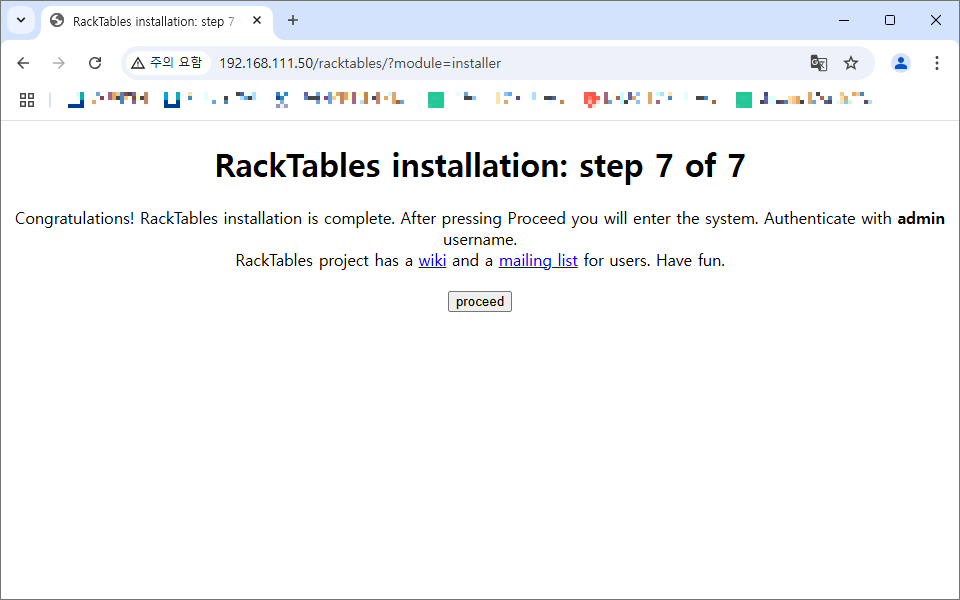
17. RackTables에 대한 초기 설정이 완료되었다는 문구가 뜨고 관리자 계정의 ID는 admin이라고 알려주네요
proceed를 누릅니다
18. 완료
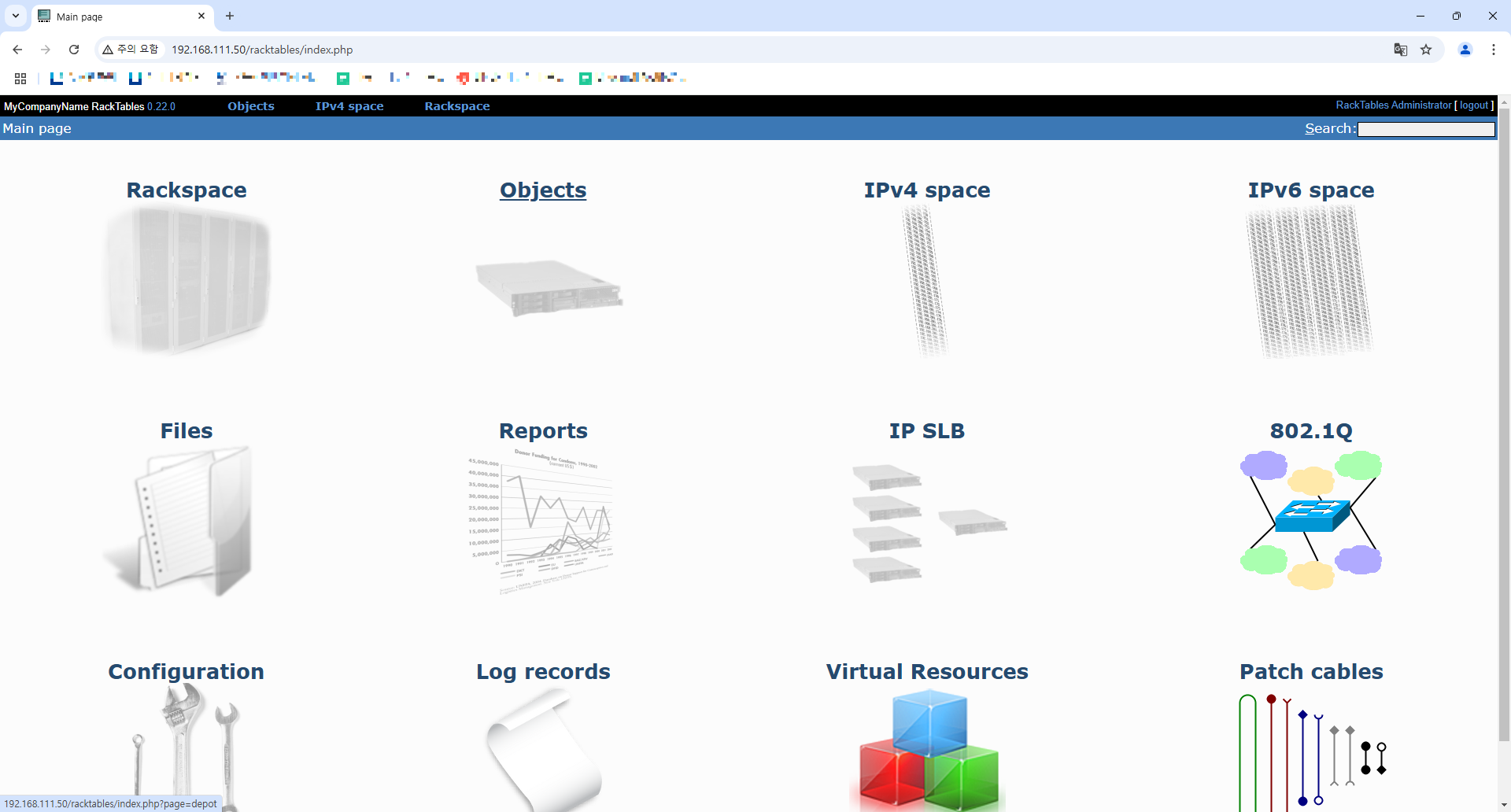
마무리
RackTables에서 제공하는 기능이 너무 많습니다
시간 날 때 하나씩 살펴보는 것도 좋을 것 같습니다
'Study' 카테고리의 다른 글
| [RabbitMQ] 개념 및 사용법 (0) | 2025.04.24 |
|---|---|
| [MQ] 에 대해서 (0) | 2025.04.24 |